⚠ Do now
Emergency Guide · iPhone Recovery
Dropped Your iPhone in Water? Minute-by-Minute Guide (0 to 48 Hours)
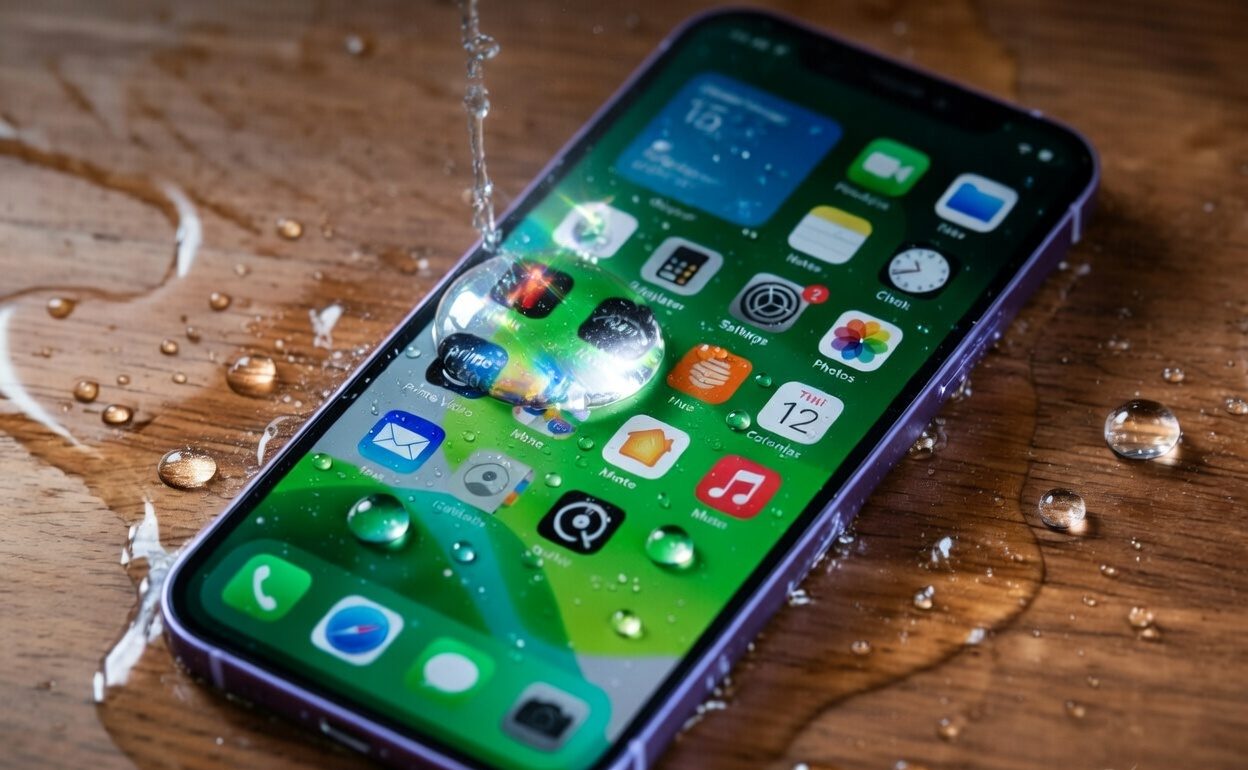
The actions you take in the first few minutes can determine whether your data survives. Here is exactly what to do and what NOT to do from the moment it happens through the next 48 hours, backed by Apple's own guidance, iFixit research, and 15,000+ cases at our lab.
73%Recovery (Fresh <1hr)
4-6 hrsSalt Corrosion Window
IP68iPhone 12+ Rating
15,000+Cases Handled
Cellebrite Certified
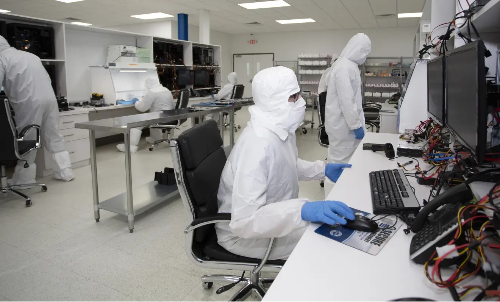
ISO Class 5 Cleanroom
24/7 Emergency
No Data, No Fee
We have handled over 15,000 data recovery cases at Wildfire, and water damage is the single most common reason people lose irreplaceable photos, messages, and documents from their iPhones. The difference between a full recovery and a total loss almost always comes down to what the owner did in the first hour.
This is not a generic list of tips. This is a time-based emergency protocol built from years of hands-on forensic recovery work, backed by Apple's own engineering documentation, independent repair research from iFixit, and corrosion science from materials engineering literature. We will walk you through exactly what to do at every stage, from the first five seconds to 48 hours after submersion, and give you the tools to estimate your chances of saving both the phone and your data.
Fair warning: some of the most popular advice on the internet (rice, hair dryers, shaking the phone) will make things worse. We will explain why, and what actually works instead.
Emergency Response
The First 5 Minutes: This Is the Critical Window
The moment your iPhone hits water, a clock starts. Electricity and liquid are actively working together to short-circuit components on the logic board. Every second the phone stays submerged and powered on, the damage compounds.

1
0:00 - 0:10
CriticalGet It Out and Power It Off Immediately
1
Remove from water
Every additional second submerged allows water to penetrate deeper through port openings, speaker grilles, and any micro-cracks in the seal.
2
Power off immediately
Press and hold the side button and either volume button until the power-off slider appears. Slide to shut down. If the phone is already off, do not turn it on. Active electrical current through wet circuits causes short circuits that permanently destroy logic board components.
3
Unplug everything
Disconnect any charging cable, headphones, or accessories. Remove the case and any screen protector that might be trapping water against the display edges.
2
0:10 - 1:00
CriticalRemove the SIM Card and Drain Excess Water
4
Eject the SIM tray
Use a SIM ejector tool or straightened paperclip. This opens an additional pathway for trapped water to escape and lets you inspect the Liquid Contact Indicator (LCI). The LCI is a small white sticker visible inside the SIM slot. If it has turned red or pink, water has reached the interior.
5
Tap gently, port facing down
Apple's own support documentation recommends this method to dislodge excess liquid from the port and speaker openings. Do not shake vigorously. Violent shaking can push water deeper into the device, past seals that might otherwise have contained it.
3
1:00 - 5:00
High PriorityWipe Down and Assess the Type of Water
6
Dry the exterior thoroughly
Use a lint-free cloth or soft microfibre towel. Dab, do not rub. Pay careful attention to the charging port, speaker grilles, and the seam between the screen and frame.
7
If saltwater: rinse gently with fresh water
This sounds counterintuitive, but it is critical. Salt crystals left to dry on the logic board are far more corrosive than fresh water. Apple's support page states that if a liquid other than water splashes on your iPhone, rinse the affected area with tap water. A brief, gentle rinse over the ports and seams displaces the salt before it can crystallise.
Do NOT Attempt to Charge Your iPhone
Apple's support documentation explicitly warns against charging a wet iPhone. Liquid in the USB-C or Lightning connector creates a conductive bridge between the charging pins. Applying power in this state can corrode the connector permanently and damage the charging circuitry. If you need to charge in a genuine emergency, use a wireless (Qi) charger with the back of the phone wiped completely dry.
Damage Control
5 to 20 Minutes: Stabilise the Situation
The adrenaline has settled. Your phone is off, the SIM tray is out, and you have wiped down the exterior. Now you need to set yourself up for the best possible drying outcome over the next 24 to 48 hours.

✓ Do This
- Place the phone on a dry, lint-free cloth in a well-ventilated area
- Position with charging port facing down so gravity helps water escape
- Set up a small fan to create gentle airflow around the phone (not into the ports)
- If available, place silica gel packets around (not inside) the phone
- Put phone in aeroplane mode before powering off, if you can do so quickly
- Write down what happened: water type, duration, depth
✗ Do NOT Do This
- Do not put it in rice (Apple officially says this damages your phone)
- Do not use a hair dryer, heat gun, or oven
- Do not blow compressed air into ports
- Do not insert cotton swabs or paper towels into ports
- Do not try to turn it on "just to check"
- Do not plug it in to charge
Drying Protocol
20 to 60 Minutes: The Patience Phase
At this point, there is very little you can physically do beyond letting the phone dry. Resist the urge to check on it constantly or to "just try" powering it on.
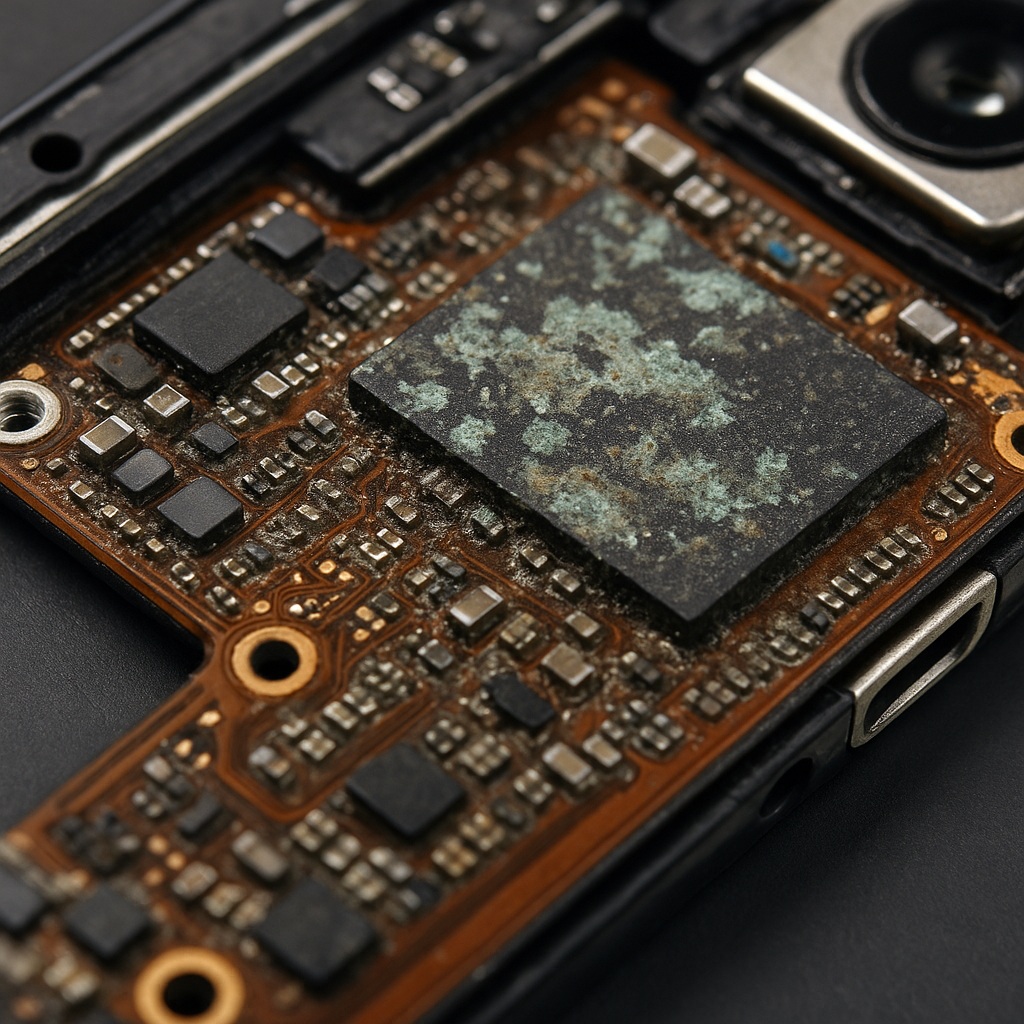
Here is what is happening inside your phone right now: water that penetrated past the gaskets is sitting on the logic board, pooling around chip packages, connector pins, and solder joints. If the phone stays powered off, no electrical current is flowing, and the damage is limited to the physical presence of the water itself. The real danger begins when minerals in the water start reacting with the metal components, a process called galvanic corrosion.
Fresh water is relatively benign in this timeframe. You have roughly 24 to 48 hours before significant corrosion sets in on the logic board. Saltwater is a different story entirely. Dissolved sodium chloride creates an electrically conductive solution that actively bridges circuits and accelerates oxidation. Corrosion from saltwater can become irreversible in as little as 4 to 6 hours.
Why "It Still Works" Means Nothing
Water damage is frequently delayed. Your iPhone might function perfectly for hours or even days after getting wet. Corrosion is a slow chemical reaction. The minerals left behind by evaporating water form conductive pathways that gradually disrupt normal electrical flow. The phone that "survived" its swim today could start randomly rebooting or refusing to charge within a week. If your phone got wet, treat it as damaged regardless of how it behaves right now.
The Corrosion Clock
1 to 6 Hours: Corrosion is Now Active
This is where the type of water becomes the most important variable.
Fresh Water
Low Severity
24-48h
Before significant corrosion
Pool / Chlorinated
Medium Severity
12-24h
Chlorine accelerates damage
Salt Water / Ocean
Critical Severity
4-6h
Corrosion can be irreversible
Toilet / Contaminated
Medium + Bio Risk
12-24h
Corrosion + contamination
Coffee / Soda / Beer
High Severity
6-12h
Sugar residue causes shorts
If your phone was exposed to anything other than clean fresh water, you should strongly consider contacting a professional data recovery lab within this window. At our lab, we use ultrasonic cleaning with isopropyl alcohol to remove corrosive deposits from the board, followed by microscope inspection of every solder joint and connector. This is not something that can be replicated at home.
Decision Point
6 to 24 Hours: Wait or Act?
Apple's liquid detection alert guidance says you can attempt to reconnect a charging cable after at least 30 minutes if the alert appeared. However, Apple's separate handling information page recommends waiting at least 5 hours before charging with a cable. The safer approach is to follow the longer timeframe.
Call a professional lab if any of these apply:
The phone was in saltwater, chlorinated pool water, or any liquid containing sugar or chemicals. The submersion lasted longer than 30 seconds. The phone was turned on or charged while still wet. You can see water behind the camera lens. The LCI in the SIM slot has turned red. The phone is warm to the touch. The phone was already cracked or had a damaged screen before getting wet.
Moment of Truth
24 to 48 Hours: Testing the Phone
If you have waited the full drying period and the phone was exposed to fresh water only, you can cautiously attempt to power it on.
1
Visual inspection first
Look into the charging port and camera lenses with a flashlight. If you see any moisture, water droplets, or condensation, wait longer. Check the SIM slot LCI again.
2
Attempt to power on
Press and hold the side button. If the Apple logo appears and the phone boots normally, that is a positive sign, but not a guarantee of long-term health.
3
Test every function
Check: touchscreen responsiveness across all areas, front and rear cameras, cellular signal, Wi-Fi, Bluetooth, speakers and microphone (make a call), charging (both wired and wireless), Face ID or Touch ID, and haptic feedback.
4
Back up immediately
If the phone powers on and functions, create a full backup to iCloud or your computer right now. Water damage is progressive. Components that survived the initial exposure can fail days or weeks later as corrosion spreads. Treat a working wet phone as borrowed time.
Myth Busted
The Rice Myth: Apple Officially Says Stop

In February 2024, Apple updated its official support documentation to explicitly warn against placing a wet iPhone in a bag of rice. The company's guidance is unambiguous.
Common DIY Drying Methods: What Works and What Does Not
When your iPhone gets wet, the internet will serve up a dozen home remedies. Here is what the evidence actually says about each of them.
✗
Rice: Does Not Work
Apple explicitly warns against this. Rice grains fragment into particles that lodge in the charging port and speaker grilles. When rice gets wet it releases starch, a sticky residue that gums up connector pins. And rice does nothing about corrosion. Salt and mineral deposits remain on the logic board regardless of how dry the surrounding air is. The rice absorbs moisture from the air around the phone, not from inside the sealed enclosure.
⚠
Silica Gel Packets: Marginally Better
Silica gel is a more effective desiccant than rice and does not introduce starch or particles into the phone. Placing silica packets around the phone in a sealed bag can help absorb ambient moisture slightly faster than air drying alone. However, like rice, silica gel cannot draw moisture out of a sealed phone enclosure, and it does absolutely nothing to address corrosive mineral residue on the logic board. It buys you a small amount of time. Nothing more.
✗
Hair Dryer / Heat Gun: Actively Harmful
Apple warns against using external heat sources. High temperatures melt internal adhesives that hold components in place, warp flex cables, and can damage the battery. The heat does not reach moisture trapped deep inside the phone's enclosure, and forcing hot air into the ports can push water deeper into the device.
✗
Compressed Air: Actively Harmful
High-pressure air forces water past seals and deeper into the phone, reaching components it might not have reached on its own. Apple specifically lists compressed air in its "do not" guidance.
✓
Gentle Fan + Airflow: Apple's Recommended Method
Apple's own handling documentation recommends tapping gently with the port facing down, then leaving the phone in a dry area with airflow. A small desk fan providing gentle, indirect circulation around the phone is the most effective safe approach. Not aimed into the ports, just ambient airflow in the room. Combined with patience (24 to 48 hours), this gives internal moisture the best chance of evaporating naturally through the phone's openings.
Apple's official "don't" list for a wet iPhone:
Do not put your iPhone in a bag of rice. Do not use an external heat source or compressed air to dry it. Do not insert a foreign object, such as a cotton swab or paper towel, into the connector. Do not attempt to charge the device until both the phone and cable are completely dry.
Interactive Tool
Recovery Success Estimator
Answer five questions to get a personalised assessment of your recovery prospects, estimated cost, and recommended next steps. Drawn from our case data across 15,000+ recoveries.
Reference Table
iPhone Water Resistance by Model
Not all iPhones are created equal when it comes to water resistance. The IP rating tells you how much water the phone was designed to withstand under controlled laboratory conditions. Apple states that water resistance can degrade over time from normal wear, drops, and repairs.
| iPhone Model | IP Rating | Max Depth | Max Duration |
|---|---|---|---|
| iPhone 17, 17 Air, 17 Pro, 17 Pro Max | IP68 | 6 metres | 30 minutes |
| iPhone 16e | IP68 | 6 metres | 30 minutes |
| iPhone 16, 16 Plus, 16 Pro, 16 Pro Max | IP68 | 6 metres | 30 minutes |
| iPhone 15, 15 Plus, 15 Pro, 15 Pro Max | IP68 | 6 metres | 30 minutes |
| iPhone 14, 14 Plus, 14 Pro, 14 Pro Max | IP68 | 6 metres | 30 minutes |
| iPhone 13, 13 Mini, 13 Pro, 13 Pro Max | IP68 | 6 metres | 30 minutes |
| iPhone 12, 12 Mini, 12 Pro, 12 Pro Max | IP68 | 6 metres | 30 minutes |
| iPhone 11 Pro, 11 Pro Max | IP68 | 4 metres | 30 minutes |
| iPhone 11 | IP68 | 2 metres | 30 minutes |
| iPhone XS, XS Max | IP68 | 2 metres | 30 minutes |
| iPhone XR | IP67 | 1 metre | 30 minutes |
| iPhone X, 8, 8 Plus | IP67 | 1 metre | 30 minutes |
| iPhone 7, 7 Plus | IP67 | 1 metre | 30 minutes |
| iPhone SE (2nd & 3rd gen) | IP67 | 1 metre | 30 minutes |
| iPhone 6s and earlier | None | N/A | N/A |
Source: Apple Support (AU). IP ratings are tested in fresh water on brand-new devices. Apple's warranty does not cover liquid damage, even on IP68-rated devices.
Diagnostic
How to Check Your Liquid Contact Indicator (LCI)
Every single iPhone ever made, from the original 2007 model right through to the iPhone 17 series, contains at least one Liquid Contact Indicator. It is a small adhesive sticker, roughly 3 to 4 millimetres across, that permanently changes colour from white or silver to fully red when it contacts water or any liquid containing water. Once triggered, it cannot be reset, dried out, or reversed. It is the first thing Apple and any repair technician will check when you bring in a device for service.

The location of the LCI depends on your iPhone model. Here is where to find it:
1
iPhone 5 through iPhone 13 (all models)
The LCI is inside the SIM card tray slot. Use the SIM ejector tool or a straightened paperclip to remove the tray, hold the phone horizontally with the screen facing down, and shine a flashlight into the slot. You will see a small white or red dot at the back of the slot.
2
iPhone 14, 15, 16, 16e, 17 series (Australian models with SIM tray)
In Australia, these models are sold with a physical SIM tray. The LCI is in the same location: inside the SIM card slot. Same inspection method as above.
3
eSIM-only models (US and select regions, no SIM tray)
When these iPhone models are sold as eSIM-only (primarily in the United States), they do not have a SIM tray or an externally visible LCI. On these devices, the indicator is located internally, typically beneath the front display, and can only be seen when the phone is disassembled by a technician.
4
iPhone 4, 4s and earlier
Older models have LCIs in different locations: inside the headphone jack, the dock connector, or both. These are visible by shining a light directly into the openings.
Find your exact model's LCI location
Apple maintains a complete table with diagrams showing the LCI position for every iPhone and iPod model ever made, including illustrations of exactly where to look. Visit Apple Support (AU): Water and other liquid damage to iPhone and scroll to the table to find your specific device.
LCI false positives are documented
Apple has acknowledged that LCIs can sometimes be activated by humidity and temperature changes that are within normal environmental conditions, without actual liquid contact. If your LCI has turned red but you are certain the phone was never exposed to water, this may be the case. However, if the phone was dropped in water and the LCI is red, it confirms water ingress and you should treat the phone as water-damaged regardless of whether it currently appears to function.
Interactive
Test Your Knowledge: Water Damage Myth-Buster Quiz
Think you know what to do when an iPhone gets wet? Some of the most widely shared advice online is completely wrong. 8 questions. How many can you get right?
Professional Recovery
When to Call a Professional Data Recovery Lab
DIY drying can save a phone that took a quick dip in fresh water. But there are situations where the only way to save your data is professional intervention with specialised equipment.
The phone was submerged in saltwater, pool water, or any liquid containing sugar, chemicals, or contaminants. The phone will not turn on after 48 hours of drying. The phone turns on but functions are failing. You attempted to charge it while wet. The phone was factory reset or is locked and you need data from it. The data on the phone is irreplaceable.
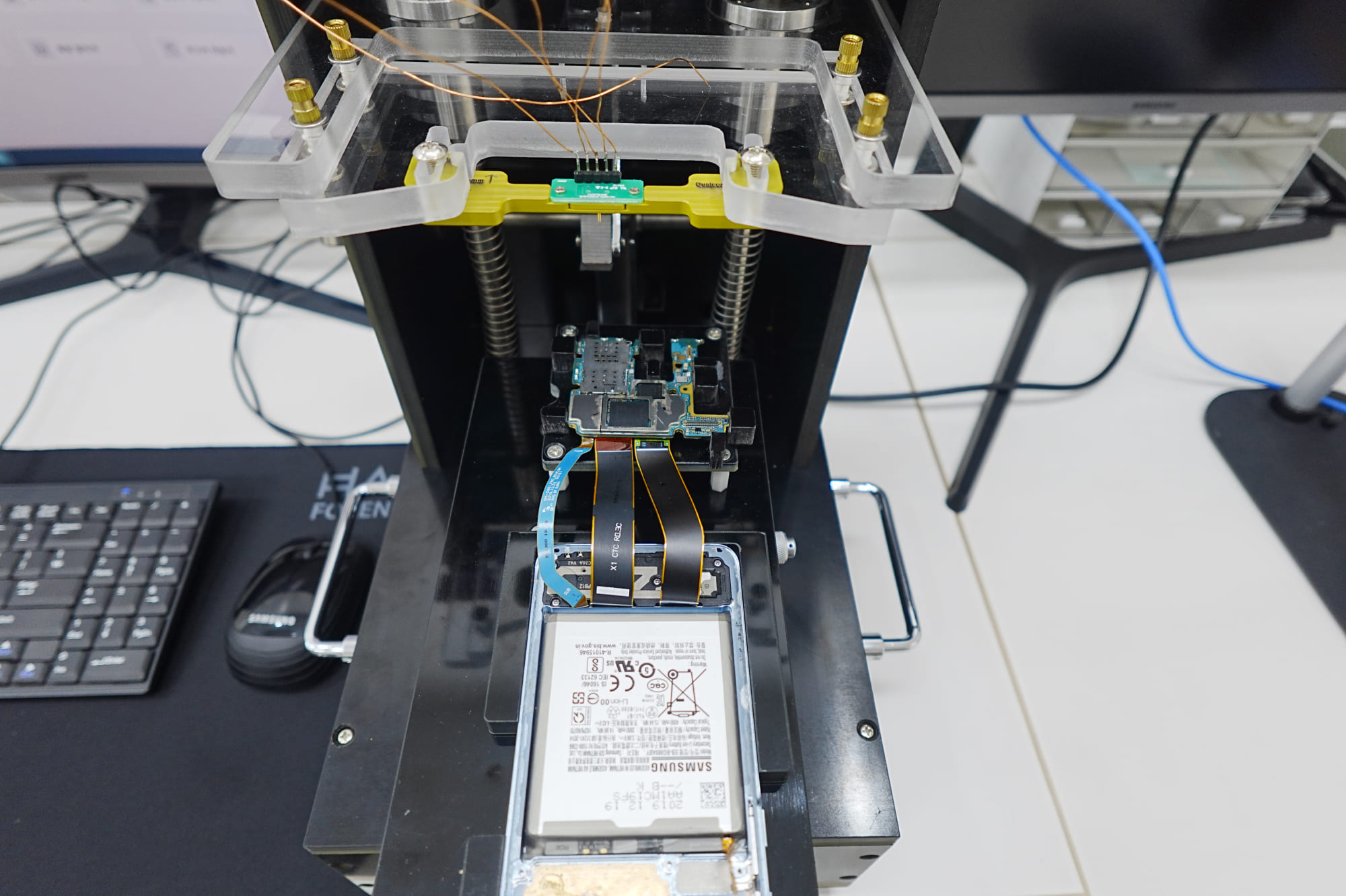
At Wildfire, we handle water-damaged iPhone data recovery using Cellebrite UFED for forensic-grade data extraction, ultrasonic board cleaning with isopropyl alcohol, and microscope-level inspection of every component. For phones that will not power on, we can perform chip-off extraction, desoldering the NAND flash memory chip and reading it directly to access your photos, messages, and files without the phone needing to work at all.
Need Emergency Help?
Free assessment. No data, no fee. Speak directly to a certified engineer, 24 hours a day, 7 days a week.
Common Questions
Frequently Asked Questions
You can, but you really should not. Water damage is progressive. The phone may work perfectly for hours or days before corrosion causes components to fail. Power off, dry the phone fully for 24 to 48 hours, then create a complete backup immediately when you power it back on. Treat a functioning wet phone as being on borrowed time.
No. Apple's limited warranty and standard AppleCare+ do not cover liquid damage. If you have AppleCare+ with accidental damage coverage, you may be able to get service for a fee. Apple explicitly states that splash, water, and dust resistance are not permanent conditions and liquid damage is not covered under warranty.
At Wildfire, water-damaged iPhone data recovery starts from $400+GST for a working device requiring forensic extraction, and from $1,200+GST for phones requiring board-level repair or chip-off extraction. Emergency service is available 24/7. All assessments are free, and our No Data, No Fee guarantee means you only pay if we successfully recover your data.
Not necessarily. We have recovered data from phones that spent weeks submerged. The NAND flash chip that stores your photos and messages is surprisingly resilient. Even when the logic board is too corroded to function, chip-off extraction can read the storage chip directly. Contact us regardless of how long it has been.
Disconnect the cable immediately. Tap gently against your hand with the charging port facing down. Apple's handling information recommends waiting at least 5 hours before charging with a cable. If the alert persists after that, you may need to wait up to 24 hours. You can charge wirelessly during this time if the back of the phone is dry. In a genuine emergency, you can override the alert, but this risks connector corrosion.
Not unless you have professional repair experience and the right tools. Opening an iPhone requires pentalobe screwdrivers, suction cups, and careful technique to avoid damaging ribbon cables and the battery. If you are considering opening the phone, you should probably be calling a professional instead.
Sources
References & Further Reading
- Apple Support (AU): About splash, water and dust resistance of iPhone 7 and later
- Apple Support (AU): If you see a liquid-detection alert on your iPhone
- Apple Support (AU): Water and other liquid damage to iPhone isn't covered by warranty
- MacRumors: Don't Put a Wet iPhone in Rice, Says Apple (Feb 2024)
- CBS News: Apple says not to put wet iPhones in uncooked rice (Feb 2024)
- Popular Science: Do not put your wet iPhone in rice (Feb 2024)
- iFixit: iPhone Liquid Damage Repair Guide
- The Mac Observer: How to Fix a Water-Damaged iPhone (Sep 2025)
- eProvided: Recover Data from a Saltwater-Damaged Phone (Feb 2026)
- eProvided: Water Damaged Phone Data Recovery (Mar 2026)
- SamMobile: What happens if water gets in my phone? (Feb 2026)
- Fyxters: iPhone Water Damage Symptoms (Jan 2026)
- Payette Forward: iPhone Water Damage Ultimate Guide
- SlashGear: The First Thing You Need To Do If Your iPhone Is Water Damaged
- ISO 14644-1: Cleanrooms and associated controlled environments
- WaterEject: iPhone Water Sensor Location Guide (Mar 2026)
- RepairSpotter: Water Damage Indicator in iPhones (Nov 2025)
- Mental Floss: Apple Says Using Rice Is Not a Good Idea (Feb 2024)
Keep Reading