Clicking Hard Drive Data Recovery Brisbane | Click of Death Experts | Wildfire
Critical Warning Sign
Is Your Hard Drive Clicking? Brisbane's Click of Death Recovery Experts
That repetitive hard drive clicking noise — known as the "click of death" — signals hard drive head failure. Your data isn't lost, but every second counts. Clicking hard drive data recovery requires immediate professional intervention.
Understanding why your hard drive is clicking is the first step to recovery. Brisbane's leading data recovery specialists have recovered data from thousands of clicking drives. With our ISO-certified cleanroom and 96% success rate, we give your irreplaceable files the best chance of survival.
The "Click of Death" — What hard drive head failure sounds like
CLICK • CLICK • CLICK
0:000:00
75%
Hearing the Click of Death Right Now? Time is Critical.
Power down your clicking hard drive immediately. Don't run recovery software — it makes hard drive head failure worse. Call us for emergency same-day assessment.
The distinctive clicking sound from your hard drive signals a critical mechanical failure. Understanding what's happening inside helps explain why professional clicking hard drive data recovery requires specialized equipment and expertise.
Mechanical Failure Zone
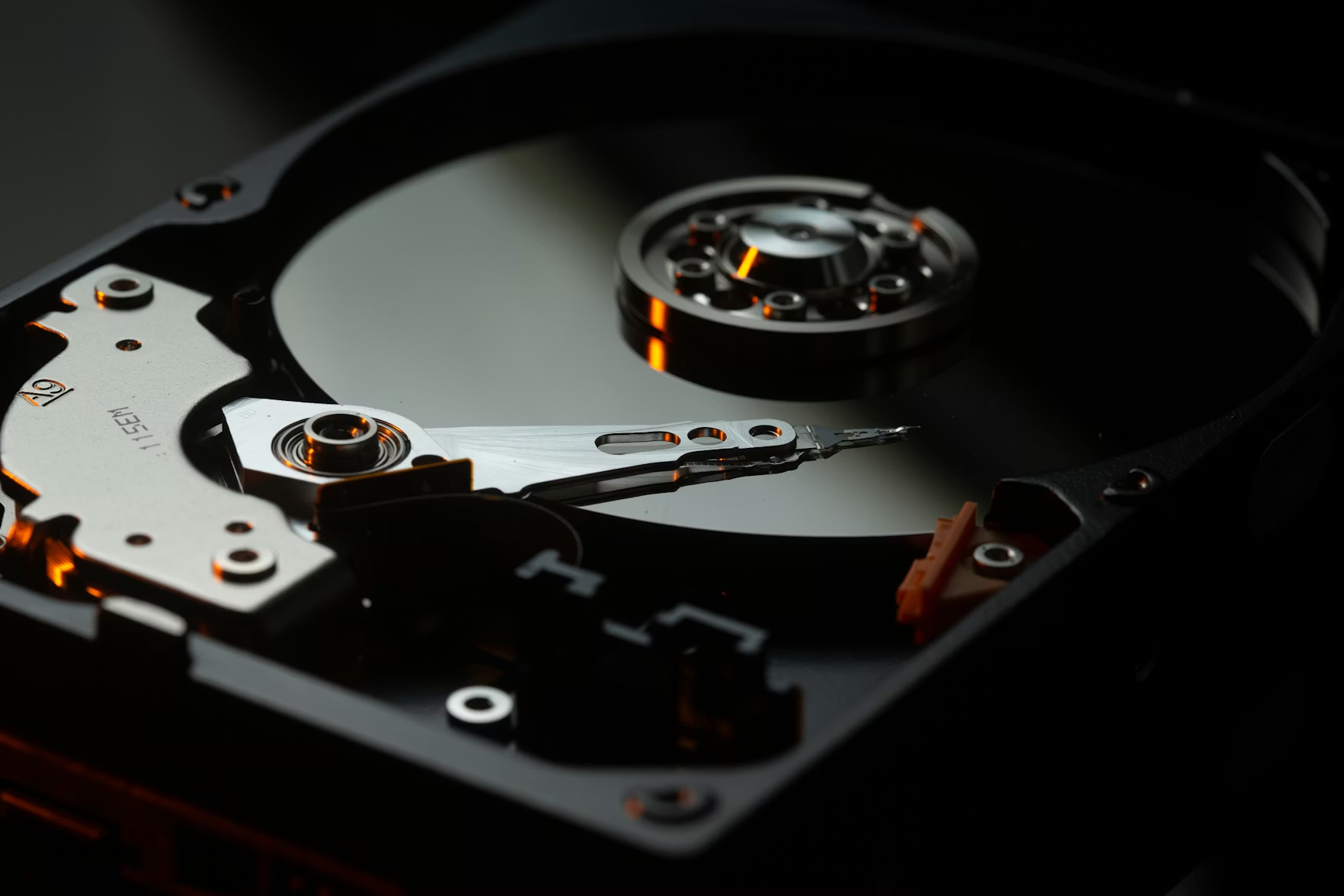
Hard Drive Internal Components
When any of these precision components fail, the drive produces the characteristic clicking sound known as the "click of death" — a sign of imminent or complete mechanical failure.
3-5nmHead Flying Height
7200RPM (Typical)
1μmPosition Accuracy
Read/Write HeadsReads & writes data magnetically
Magnetic PlattersStores all your data
Actuator ArmPositions heads precisely
Spindle MotorSpins platters at high speed
PCB ControllerControls all drive operations
Why Is My Hard Drive Clicking?
The hard drive clicking noise you're hearing is your drive's read/write heads repeatedly trying — and failing — to locate their correct position on the magnetic platters. This mechanical failure, documented extensively by manufacturers like Seagate and Western Digital, is commonly called the "click of death."
Inside every hard disk drive (HDD), an actuator arm swings read/write heads across spinning platters with extraordinary precision. The heads never touch the platter surface — they float on a microscopic cushion of air just 3 to 5 nanometers above it. To put that in perspective, a human hair is approximately 75,000 nanometers thick, and a fingerprint is about 600 nanometers.
The Anatomy of a Click
When you power on a clicking hard drive, here's what's happening inside:
1. The Drive Attempts to Initialize
The platters spin up to operating speed (5,400–15,000 RPM depending on drive type), and the heads move from their parked position to begin reading the drive's firmware data.
2. Head Positioning Fails
The damaged heads cannot read the servo tracks that guide positioning. Without this feedback, the actuator doesn't know where to place the heads, causing them to sweep back and forth searching.
3. The Drive Resets and Retries
After multiple failed attempts, the drive's controller parks the heads back on the ramp (the "click" sound) and starts the initialization process again. This cycle repeats indefinitely, creating the rhythmic clicking pattern.
Each Click Can Cause Permanent Damage
Every time the damaged heads sweep across the platter surface, they may be scraping microscopic grooves into the magnetic coating — permanently destroying the data stored in those areas. This is why powering off immediately is critical.
Why Normal Use Makes It Worse
When your hard drive starts clicking, continuing to use it — even to "quickly backup important files" — is the worst thing you can do. Each read/write operation causes the damaged heads to traverse the platters, potentially destroying more data with every pass. According to data recovery industry research, drives that are powered off immediately after the first clicking sounds show recovery success rates above 90%, while drives that continue running can drop below 50%.
Can Data Be Recovered from a Clicking Hard Drive?
Yes — professional clicking hard drive data recovery has a high success rate when the drive is handled correctly. Recovery requires replacing the damaged head assembly in an ISO Class 100 cleanroom using compatible donor parts, then imaging the platters with specialized equipment like the PC-3000.
Hard Drive Technical Specifications
3-5 nmHead Flying HeightA virus particle is 20-300nm. A smoke particle is 1,000nm.
5,400-15KRPM Platter SpeedEnterprise drives spin at 10,000-15,000 RPM for faster access.
1 TbpsiData DensityModern drives store 1+ terabit per square inch of platter surface.
< 1 μmPosition AccuracyHeads must position within 1 micron (0.001mm) to read data.
Identifying Clicking Patterns
Not all clicking sounds indicate the same problem. The pattern and frequency of the hard drive clicking noise can help identify the underlying failure mode and inform the recovery approach.
Rhythmic, Steady Clicking
Regular clicking every 1-2 seconds typically indicates head failure. The drive repeatedly attempts to initialize, fails, parks the heads (click), and retries. This is the classic "click of death" pattern.
CLICK . . CLICK . . CLICK
Rapid Clicking/Chattering
Fast, irregular clicking or chattering sounds suggest the heads are actively scraping or bouncing on the platter surface — a head crash. This causes immediate and ongoing data destruction.
CLICKCLICKCLICK-CLICK
Click Then Spin-Down
A single click followed by the motor spinning down usually indicates firmware or PCB issues. The drive starts, encounters an error reading system data, and shuts down to protect itself.
CLICK . . . [silence]
Recovery Success Rates by Failure Type
The following table shows approximate clicking hard drive data recovery success rates based on our experience recovering thousands of drives. Actual results depend on factors including drive condition, how long it was operated after failure, and whether any DIY recovery attempts were made.
Understanding why your hard drive is clicking helps us determine the best clicking hard drive data recovery approach and set realistic expectations for your data.
Most Common
Physical Impact or Drop Damage
Even a small drop can cause hard drive head failure by misaligning the delicate head assembly or damaging the spindle motor bearings. External hard drives clicking after a fall is one of the most common scenarios we see — a 30cm drop onto a hard surface while powered on is often enough to trigger the click of death.
Sudden onset after dropExternal USB drivesLaptop drives
47%Of clicking cases
94%Recovery rate
48hAvg turnaround
Severe
Head Crash
When read/write heads physically contact the spinning platter, they can gouge the magnetic surface. This is the most severe form of hard drive clicking noise — immediate power-off is critical to prevent total data loss.
Grinding soundBurning smellComplete failure
Common
PCB (Circuit Board) Failure
The printed circuit board controls all drive functions. Power surges, faulty cables, or component failure can cause the PCB to send incorrect signals, making heads seek incorrectly and creating a clicking hard drive.
After power surgeIntermittent clickingBurnt components
Common
Motor Bearing Failure
The spindle motor spins platters thousands of times per minute. Worn bearings cause wobble and vibration, making precise head positioning impossible and causing the hard drive making clicking noise pattern.
Age-relatedWhining soundSlow spin-up
Recoverable
Firmware Corruption
Modern drives store critical operating parameters in firmware modules. Corruption can cause the drive to fail initialization and repeatedly attempt to recalibrate, creating clicking sounds.
After firmware updateRandom onsetConsistent pattern
Environmental
Thermal Damage
Excessive heat warps platters and damages head assemblies. Poor ventilation, blocked fans, or operating in hot Australian summers gradually degrades drive components until clicking begins.
Hot to touchPoor ventilationGradual onset
Natural
End of Life / Wear
Hard drives have a finite lifespan (typically 3-5 years of heavy use). Components naturally degrade over time, and clicking may signal the drive is reaching end of life. Can data be recovered from clicking hard drive? Yes, in most cases.
Old drive (5+ years)Heavy use historyPrevious issues
Emergency Guide
What To Do Right Now
Wondering how to fix a clicking hard drive without losing data? The actions you take in the next few minutes can mean the difference between successful clicking hard drive data recovery and permanent data loss. Follow these steps carefully.
1
Stop Using the Clicking Hard Drive Immediately Critical
Power down your computer or safely disconnect the external hard drive clicking. Every second the drive runs while clicking, the heads may be causing additional damage to the platter surfaces where your data is stored. If your hard drive is making clicking noise and won't boot, do not attempt to restart.
Don't keep turning it on "just to check" — each power cycle causes more head damage and reduces recovery chances.
2
Do NOT Attempt DIY Clicking Hard Drive Fix
Recovery software cannot fix mechanical problems and will only cause additional wear on your clicking drive. Opening the drive outside an ISO cleanroom introduces dust particles that can destroy platters. Internet "fixes" like the freezer trick cause condensation damage.
Even data recovery professionals use ISO Class 100 cleanrooms with fewer than 100 particles per cubic metre — impossible to replicate at home.
3
Document the Hard Drive Clicking Noise Symptoms
Note when the clicking started, what happened beforehand (drop, power outage, etc.), the clicking pattern (continuous, intermittent, rhythmic), and any error messages. Record a short audio clip if possible. This information helps us diagnose faster and choose the right recovery approach.
4
Store Your Clicking Drive Safely
Keep the drive in a cool, dry place away from magnetic sources (speakers, magnets, other electronics). Don't shake, drop, or apply pressure. If it's an internal drive, leave it installed if possible to avoid additional handling that could worsen head failure.
5
Contact Professional Clicking Hard Drive Data Recovery Service
Time is critical with clicking drives. Contact Wildfire Data Recovery for a free assessment. We'll evaluate your drive using professional diagnostic tools, explain the recovery options, and provide a fixed quote before any work begins. Can data be recovered from a clicking hard drive? In 96% of cases, yes.
We offer free courier pickup across Brisbane and SE Queensland — no need to risk further damage transporting it yourself.
Critical Warning
DIY "Fixes" That Destroy Your Data
The internet is full of "quick fixes" for clicking hard drives. These myths don't just fail — they actively destroy data and can make professional recovery impossible. We see the aftermath every week. Here's the truth about each dangerous technique and why it fails.
Every DIY Attempt Reduces Your Recovery Chances
Our laboratory receives hundreds of drives each year that were recoverable before DIY attempts — and unrecoverable afterward. The damage from these "fixes" is often worse than the original failure. Statistics from our case files show the devastating impact.
65%Lower success rate after DIY attempts
73%Of frozen drives become unrecoverable
89%Of opened drives have contamination
Most Destructive Myth
1
This platter was destroyed by condensation within minutes of removal from a freezer. The white spots are corrosion eating through the magnetic coating where your data was stored.
73%Made Unrecoverable
<2 minDamage Time
Condensation forms instantly when cold metal meets room temperature air — exactly like a cold drink on a hot day
Myth #1
The "Freezer Trick"
Put your clicking hard drive in the freezer for a few hours. The cold will shrink the metal parts and free up the stuck heads, giving you time to copy your data before it warms up again.
This myth originated in the early 1990s when hard drives were much larger, used different bearing types, and had completely different failure modes. Some older drives with stiction (heads stuck to platters) occasionally worked briefly after cooling. But modern drives are destroyed by this technique.
Why It's Catastrophic Now
Modern hard drives operate at tolerances measured in nanometers. When you remove a frozen drive from the freezer and expose it to room temperature air, condensation forms immediately on every surface — including the platters where your data lives and the heads that must float above them.
This moisture causes several types of irreversible damage. The water droplets on the platter surface cause the magnetic coating to oxidize and corrode, chemically destroying the data stored there. When the drive spins up, the heads — designed to float on a microscopic air cushion — instead hydroplane through water droplets and crash into the surface. The PCB electronics can short-circuit from moisture infiltration.
Additionally, the thermal shock from temperature changes of 50°C or more can crack the glass platters used in many modern drives. Even if the platters survive, the precision mechanical alignment of the head stack is disrupted by uneven thermal expansion.
Damage Caused by Freezing
Condensation corrosion: Water droplets chemically destroy the magnetic coating within minutes, creating permanent data loss in affected areas
Moisture head crash: Heads hydroplane through water droplets and slam into platter surface, causing concentric scratch rings
PCB short circuits: Moisture on circuit board causes electrical shorts that can burn out controller chips
Thermal shock fractures: Glass platters can crack from rapid temperature changes exceeding 50°C
Even "Sealed" Drives Aren't Protected
Hard drives have breather holes that equalize internal and external air pressure. When you freeze a drive, moisture-laden warm air rushes in through these holes as the drive warms up, condensing directly on internal components.
Irreversible Damage
2
This drive was opened "just for a quick look" in a normal room. The white specks are dust particles — each one larger than the head flying height, guaranteeing catastrophic head crashes.
89%Show Contamination
25%Recovery Rate After
Professional cleanrooms filter air to fewer than 100 particles per cubic foot — normal air contains millions
Myth #2
Opening the Drive Yourself
I can open my hard drive and manually move the heads back into position, or clean the platters with a soft cloth to remove any debris.
This sounds logical if you think of hard drives like other mechanical devices. But hard drives operate at tolerances that make them more like precision scientific instruments than consumer electronics. Opening one outside a cleanroom is like performing surgery in a dusty garage.
Understanding the Scale Problem
Hard drives are assembled in ISO Class 100 cleanrooms where every cubic foot of air contains fewer than 100 particles larger than 0.5 microns. Normal room air — even in a "clean" home — contains millions of particles per cubic foot. A single dust particle is between 1,000 and 100,000 nanometers across. The heads float just 3-5 nanometers above the platters.
The moment you remove those Torx screws and lift the lid, billions of contaminant particles rush into the drive enclosure. They land on the platters, embed in the lubricant, and settle on the head sliders. When the drive spins up, these particles act like boulders on a highway — the heads crash into them at the equivalent of hundreds of kilometers per hour, gouging deep scratches across multiple data tracks.
Fingerprint oils are equally devastating. The natural oils on human skin chemically react with the magnetic coating, creating permanent etching patterns. Even touching the edge of a platter — which seems safe — allows oils to migrate across the surface over time.
Damage From Opening
Dust contamination: Particles embed in the drive permanently and cannot be removed without causing more damage
Fingerprint etching: Skin oils chemically attack magnetic coating, spreading over time from any contact point
Head alignment destruction: Any physical contact with heads permanently alters their microscopic flying characteristics
Static discharge: ESD events can destroy head preamps and PCB components instantly
The Professional Reality
Hard drives can only be safely opened in ISO Class 100 cleanrooms using specialized tools, anti-static procedures, and laminar flow workstations that maintain a constant curtain of filtered air. Even professional technicians train for years before performing internal drive work solo.
Wrong Tool for the Job
3
Recovery software is designed for logical failures (deleted files, formatted drives). Running it on a clicking drive forces damaged heads to sweep across platters for hours — destroying data with every pass.
HoursOf Head Damage
0%Success on Clicking
Bad sectors grow exponentially during scans — a drive with 100 bad sectors can have 10,000+ after a full scan
Myth #3
Running Recovery Software
Download data recovery software like Recuva, TestDisk, or PhotoRec to scan the clicking drive and recover my files. Maybe some data can be salvaged even if the drive is failing.
This is one of the most common mistakes we see, and it's understandable — data recovery software is often the first search result when people look for help with failing drives. But these tools are designed for completely different problems than clicking drives.
Logical vs. Physical Failures
Recovery software addresses logical failures — accidental deletion, formatted partitions, corrupted file systems. In these cases, the drive hardware works perfectly; only the data organization has been damaged. The software scans the drive, finds file fragments, and reconstructs them.
A clicking drive has a physical failure. The hardware itself is broken. Running recovery software doesn't fix damaged heads — it just forces those damaged heads to sweep across your platters thousands of times while the software attempts to read every sector. Each sweep risks additional damage. Each failed read attempt causes the heads to retry repeatedly. What starts as a recoverable problem becomes an unrecoverable disaster.
We regularly receive drives that started with minor head issues — perhaps 95%+ of data recoverable — but arrived after recovery software scans with massive platter damage covering 30-50% of the surface. The software ran for 8-12 hours, forcing failed reads across the entire drive, turning localized damage into widespread destruction.
Damage From Software Scans
Extended head operation: 8-12 hour scans put thousands of hours of wear on already-damaged heads
Aggressive retry behavior: Software retries failed sectors dozens of times, each retry damaging the area further
Full surface scanning: Software reads every sector, spreading damage across areas that were previously healthy
No diagnostic capability: Software cannot detect mechanical problems — it just keeps trying and failing
When Recovery Software IS Appropriate
Use recovery software only on drives that are working normally but have logical problems — accidental deletion, format, or corruption. If the drive clicks, beeps, grinds, or isn't detected, software won't help and will likely cause harm.
Catastrophic Results
4
These concentric scratch rings were caused by a single "tap" while the drive was spinning. Each ring represents thousands of destroyed data tracks containing irreplaceable files.
1000sFiles Per Ring
InstantDamage Speed
Head crashes create metallic debris that spreads throughout the drive, causing ongoing damage with every rotation
Myth #4
Tapping or Hitting the Drive
Give the drive a firm tap or twist while it's running. This can dislodge stuck heads or free up mechanical jams. My friend says it worked for him back in the day.
This technique occasionally worked in the 1980s with drives that had different mechanical designs and larger tolerances. Modern drives are precision instruments where physical shock is catastrophic.
The Physics of Destruction
Picture this: read/write heads weighing almost nothing float 3-5 nanometers above platters spinning at 7,200 RPM — faster than a race car engine. The heads are aerodynamically designed to ride on a microscopic cushion of air. Any physical shock disrupts this air bearing.
When you tap or twist a running drive, the heads momentarily lose their air cushion and slam into the platter surface. At 7,200 RPM, the outer edge of a 3.5" platter is moving at roughly 130 km/h relative to the head. The impact gouges a deep scratch, and the rotation immediately drags that gouge into a circular ring around the entire platter.
This creates two problems. First, the immediate scratch destroys data across thousands of tracks — potentially tens of thousands of files. Second, the impact generates metallic debris — microscopic particles of platter coating and head material. This debris spreads throughout the drive, contaminating everything and causing ongoing damage with every subsequent rotation.
Damage From Physical Impact
Circular scratch rings: Each impact creates concentric damage patterns destroying entire data tracks
Head destruction: Impact can shatter the delicate head slider, destroying the read/write element
Bearing damage: Shock can damage spindle motor bearings, causing wobble and additional head crashes
Recoverable to Unrecoverable in One Tap
We've received drives that had simple firmware issues — 99% recoverable — that were converted to severe physical damage cases after a single "tap." One moment of impatience can cost thousands of irreplaceable files.
Recovery Success Rates: Professional vs. DIY
The numbers show clearly why DIY attempts are so costly. These statistics are based on our case files from over 15,000 drives recovered since 2018.
Drive brought directly to professionals
96% Success
96%
After recovery software attempts
65% Success
65%
After multiple power cycles
55% Success
55%
After freezer treatment
27% Success
27%
After drive opened at home
25% Success
25%
After physical impact/tapping
20% Success
20%
What Actually Works
Professional clicking hard drive data recovery isn't a "trick" or a "hack" — it's a methodical process using specialized equipment, cleanroom facilities, and years of expertise. Here's what actually recovers data from clicking drives.
Stop immediately — Power off at the first click to preserve maximum data
Don't attempt anything — Every DIY attempt statistically reduces your chances
Professional diagnosis — Free evaluation identifies exact failure mode
Cleanroom head transplant — Matching donor parts installed in ISO Class 100 facility
Forensic imaging — PC-3000 reads every accessible sector before extraction
Data verification — Complete file listing before you pay anything
Free Professional Evaluation
We'll diagnose your clicking drive and provide an honest assessment — no charge, no obligation, no pressure.
Professional clicking hard drive data recovery requires specialized facilities, forensic-grade equipment, and years of experience. Here's exactly what happens when your drive arrives at our Brisbane laboratory — no secrets, no mystery, just proven methodology.
1
1-2 Hours
Every clicking drive undergoes comprehensive external diagnostics before we consider opening the enclosure — protecting your data from unnecessary risk.
Step 1: Free Diagnostic Evaluation
When your clicking hard drive arrives at our laboratory, we don't immediately open it. That would be reckless. Instead, we perform a comprehensive external evaluation to understand exactly what we're dealing with — and whether opening the drive is even necessary.
Our engineers connect the drive to isolated diagnostic systems that monitor power consumption, listen to acoustic signatures, and analyze any data the drive can still communicate. This tells us whether the clicking is caused by head failure, firmware corruption, servo damage, or PCB issues — each requiring a different recovery approach.
We also research your specific drive model, checking our database of over 50,000 documented cases for known issues, compatible donor drives in our inventory, and any manufacturer-specific quirks that could affect recovery. This preparation is critical — it's the difference between a 95% success rate and a 50% success rate.
What We Check
Acoustic analysis: Click pattern, frequency, and motor sounds
Power diagnostics: Current draw during spin-up and head movement
Firmware status: Whether SA (System Area) is accessible
PCB inspection: Visual check for burnt components or damage
Model research: Known issues, donor compatibility, firmware version
No charge, no obligation: This evaluation is completely free. If we determine recovery isn't possible or cost-effective, you pay nothing. We'll explain exactly what we found and why.
2
30-60 Minutes
Our ISO Class 100 cleanroom maintains fewer than 100 particles per cubic foot — normal room air contains millions. This environment is essential for safely opening hard drives.
Step 2: Cleanroom Preparation
Once we've confirmed the drive requires internal work — typically head replacement for clicking drives — we prepare to open it in our ISO Class 100 cleanroom. This isn't just a clean room; it's a controlled environment where air is filtered through HEPA systems to remove 99.99% of all particles.
Why does this matter? Remember that heads fly just 3-5 nanometers above the platters. A single dust particle — invisible to the naked eye — is thousands of nanometers across. If even one particle lands on the platter surface when the drive is open, it will cause a head crash when the drive spins up, destroying data across thousands of tracks.
Our cleanroom at 38/7 Franco Place, Bridgeman Downs features laminar flow workstations that create a constant curtain of filtered air flowing over the work surface. Engineers wear full cleanroom suits, gloves, and masks — not for their protection, but for your data's protection. Every tool is cleaned and inspected before use.
Cleanroom Specifications
ISO Class 100: Fewer than 100 particles (≥0.5μm) per cubic foot
Why DIY fails: Opening a hard drive at home — even in a "clean" bathroom — exposes platters to millions of contaminating particles. This single action reduces recovery chances from 90%+ to under 25%.
3
2-4 Hours
The head stack assembly contains multiple read/write heads on a single actuator arm. Transplanting this assembly requires exact model matching and precision alignment.
Step 3: Head Stack Replacement
This is the critical step that makes clicking hard drive data recovery possible. The damaged head stack assembly — the component causing the clicking — must be removed and replaced with a healthy one from a compatible donor drive.
Finding the right donor isn't simple. It's not enough to match the manufacturer, model, and capacity. The donor must have the same firmware revision, head map configuration, manufacturing date range, and often the same factory origin. A Seagate Barracuda from Thailand might be incompatible with an identical model from China. We maintain an extensive library of donor drives specifically for this reason.
The transplant procedure itself requires steady hands and specialized tools. The head stack is secured by microscopic screws and connected to the PCB via a flexible cable. Every movement must be precise — the heads can never touch the platter surfaces, and the alignment must be exact to within microns. Our engineers train for years before performing solo head transplants.
Donor Matching Criteria
Model number: Exact match required (e.g., ST2000DM001)
Firmware version: Must be within compatible range
Head configuration: Same number and type of heads
Manufacturing site: Often must match (China, Thailand, etc.)
Date code: Manufacturing date within similar range
Our donor library: We stock over 2,000 donor drives across all major manufacturers. For rare models, we source globally within 24-48 hours.
4
4-48 Hours
The PC-3000 system reads data at the physical level, bypassing normal drive firmware. It can read sectors that would crash consumer systems and adapts in real-time to drive instability.
Step 4: Forensic Sector Imaging
With healthy heads now installed, we don't immediately try to access your files. That would be foolish — the drive is still fragile, and every minute it runs is borrowed time. Instead, we connect it to our PC-3000 UDMA forensic imaging system to create a complete sector-by-sector clone.
The PC-3000 is the industry-standard tool for professional data recovery, used by law enforcement and data recovery labs worldwide. Unlike consumer software, it communicates directly with drive hardware, bypassing normal firmware that might report errors or lock up. It can read sectors that would crash Windows, skip unstable areas and return later, and adapt its strategy based on how the drive responds.
The imaging process creates an exact bit-for-bit copy of every accessible sector — typically 99%+ of the drive. We read good areas first (where your data likely lives), then progressively attempt more difficult regions. The original drive might run for hours or days during this process, which is why the head transplant must be done correctly — the new heads must survive long enough to read everything.
PC-3000 Capabilities
Direct hardware access: Bypasses OS and firmware limitations
Adaptive reading: Adjusts strategy based on drive behavior
Head selection: Can read from individual heads separately
Firmware repair: Can fix corrupted drive firmware
Bad sector management: Maps and skips unstable areas
Why imaging first? Once we have a clone, the original drive is no longer needed. All further work happens on the image — if anything goes wrong, we can simply re-read from the clone.
5
2-8 Hours
After imaging, we extract and verify your files from the cloned data. You'll receive a detailed file listing before approving the recovery and making payment.
Step 5: Data Extraction & Verification
With a complete sector image safely stored on our servers, we can finally focus on your actual files. This is where clicking hard drive data recovery transitions from hardware work to logical recovery — parsing file systems, rebuilding directory structures, and extracting intact files.
We mount the cloned image and analyze its file system — typically NTFS for Windows, APFS/HFS+ for Mac, or ext4 for Linux. If the file system is intact, extraction is straightforward. If there's corruption (common when clicking drives were run repeatedly before shutdown), we use specialized tools to reconstruct file tables and recover files based on their signatures and headers.
Before you pay anything, we provide a complete file listing showing exactly what we recovered. You can review folder structures, file names, and file sizes to verify your important data is there. Only after you confirm satisfaction do we transfer files to new media (external drive, USB, or cloud upload) and process payment.
What You Receive
Complete file listing: Full directory tree of recoverable files
Recovery report: Detailed explanation of what was recovered
Verification period: Time to confirm critical files are intact
Choice of media: External drive, USB flash, or secure cloud transfer
Original drive: Returned to you if requested
No data, no charge: If we can't recover the files you need, you don't pay for recovery. Our success rate means this rarely happens — but the guarantee gives you peace of mind.
Professional Equipment We Use
Recovering data from clicking drives requires specialized tools that most computer repair shops don't have — and couldn't afford even if they wanted them. Here's what sets professional recovery apart.
PC-3000 UDMA
Industry-standard forensic imaging system for hard drives. Direct hardware communication, firmware repair, and adaptive reading.
DeepSpar DDI
Hardware imaging tool that handles severely damaged drives. Specialized for unstable media with advanced head control.
ISO Class 100 Cleanroom
HEPA-filtered environment with fewer than 100 particles per cubic foot. Essential for any internal drive work.
Donor Drive Library
Over 2,000 drives from all manufacturers and date ranges. Exact matching for head compatibility.
96%
Success Rate
15K+
Drives Recovered
3-7
Days Average
$0
If No Recovery
All Major Manufacturers
Hard Drive Brands We Recover
We have extensive experience recovering data from clicking hard drives across all manufacturers. Each brand has unique firmware, head designs, and common failure patterns — our expertise covers them all.
Seagate
Barracuda, IronWolf, Backup Plus, Expansion
97%
Success Rate
Seagate drives are among the most common we recover. Their Barracuda consumer line and IronWolf NAS drives share similar architectures, and we maintain an extensive library of donor drives covering firmware versions from 2010 to present. Seagate clicking hard drive recovery typically involves head replacement or firmware repair.
Known Issues
ST3000DM001: High failure rate, weak heads prone to clicking
Western Digital manufactures both internal drives (Blue, Black, Red series) and hugely popular external drives (My Passport, My Book). WD clicking hard drive recovery often involves their USB-SATA bridge boards, which can complicate diagnosis. We're experts in both native SATA and USB-connected WD recovery.
Known Issues
My Passport: Hardware encryption requires original PCB
USB 3.0 bridge failures often mistaken for clicking
Common Models We Recover
WD10EZEXWD20EARSWD40EFRXWDBU6Y0020WDBUZG0010
Toshiba
N300, X300, Canvio, P300, MQ Series
94%
Success Rate
Toshiba drives are common in laptops (MQ series) and external enclosures (Canvio). Their 2.5" drives have specific head stack configurations that require exact donor matching. Toshiba clicking hard drive recovery success depends heavily on having the correct donor, as firmware variations are less tolerant than other brands.
Known Issues
MQ01ABD series: Delicate head assemblies, common in laptops
Narrow donor compatibility windows by date code
Canvio external encryption varies by region
Common Models We Recover
MQ01ABD100DT01ACA100HDWL110MQ04ABF100N300 HDWG
Samsung
SpinPoint, M8, ST Series (Legacy HDD)
95%
Success Rate
Samsung sold their HDD division to Seagate in 2011, but millions of Samsung drives remain in service. The SpinPoint F3 series was particularly popular and reliable. Samsung clicking hard drive recovery requires legacy donor drives that can be harder to source, but we maintain stock specifically for these cases.
SpinPoint M7/M8: Common in older laptops, delicate heads
Some models have unusual firmware structures
Common Models We Recover
HD103SJHD502HJST500LM012HN-M500MBBSP2504C
External Hard Drives & Enclosures
External hard drive clicking is often more complex than internal drive recovery. External enclosures add USB bridge boards, hardware encryption, and physical damage from portability. We recover all major external brands.
WD My Passport
Hardware encrypted drives. Original PCB required for recovery. We handle encryption complications.
Seagate Backup Plus
SMR recording technology. Requires specialized imaging parameters. Common in desktop and portable models.
Toshiba Canvio
Compact portable drives. Regional encryption variations require correct approach for each model.
LaCie & G-Drive
Professional creative drives. Often contain Seagate or WD internals with premium enclosures.
Plus All Other Brands
Hitachi/HGST
Maxtor (Legacy)
Fujitsu
LaCie
G-Technology
Sound Identification Guide
Clicking vs Beeping vs Grinding
Different sounds indicate different failures — and require different recovery approaches. Listen to your drive carefully and compare with these common failure patterns to understand what's happening and what to do next.
Clicking
CLICK . . CLICK . . CLICK
Rhythmic pattern, 1-2 second intervals
What You're Hearing
A repetitive clicking or ticking sound, like a metronome. The drive attempts to read, fails, parks the heads (click), and retries. This cycle repeats indefinitely.
Common Causes
Read/write head failure or misalignment
Servo track damage on platters
Firmware corruption in System Area
Physical shock or drop damage
Typical Recovery Rate90-96%
Beeping
BEEP—BEEP—BEEP
Continuous tone or repeated beeps
What You're Hearing
A high-pitched beeping or whining sound, sometimes continuous. The spindle motor is trying to spin but the platters aren't moving — heads may be stuck to the platter surface.
Common Causes
Stiction — heads stuck to platter surface
Seized spindle motor bearings
Motor controller failure on PCB
Insufficient power supply
Typical Recovery Rate85-92%
Grinding
GRRRRRRRRRRR
Harsh, continuous scratching noise
What You're Hearing
A harsh grinding, scraping, or scratching sound. This is the most serious symptom — heads are physically contacting and damaging the platter surface. Power off immediately.
Common Causes
Active head crash — heads scraping platters
Debris contamination inside drive
Severe physical damage from drop/impact
Failed head dragging across surface
Typical Recovery Rate40-70%
Quick Comparison Guide
Use this table to quickly identify your failure type and understand what to expect.
Characteristic
Clicking
Beeping
Grinding
Sound Pattern
Rhythmic, repetitive clicks
Continuous or pulsing tone
Harsh, scraping noise
Platters Spinning?
Yes — usually at full speed
No — motor can't spin
Yes — often with vibration
Primary Failure
Read/write heads or firmware
Spindle motor or stiction
Head crash (active damage)
Data Being Destroyed?
Possibly — each click risks it
No — platters not moving
Yes — actively destroying data
Urgency Level
High — power off soon
Medium — safe while off
Critical — power off NOW
Typical Recovery
Head replacement + imaging
Motor repair or platter swap
Surface cleaning + head swap
Success Rate
90-96%
85-92%
40-70%
Typical Timeframe
3-7 days
5-10 days
7-14 days
Not Sure What You're Hearing?
Describe your drive's symptoms and we'll help you identify the problem — free of charge.
Get answers to the most common questions about clicking hard drive data recovery, costs, timelines, and what to expect from professional recovery.
Can data be recovered from a clicking hard drive?
Yes — professional clicking hard drive data recovery has success rates above 90% when the drive is handled correctly. The clicking sound indicates a mechanical failure, typically with the read/write heads, but your data stored on the magnetic platters is usually still intact.
Recovery requires replacing the damaged head assembly with compatible donor parts in an ISO Class 100 cleanroom, then using specialized forensic imaging equipment like the PC-3000 to extract data sector-by-sector. This process cannot be done at home and requires professional equipment worth hundreds of thousands of dollars.
The key factor affecting success is how the drive was handled after it started clicking. Drives that were powered off immediately have much higher recovery rates than drives that continued running or were subjected to DIY repair attempts.
How much does clicking hard drive recovery cost?
Clicking hard drive recovery typically costs between $500-$1,500 AUD depending on the complexity of the case. Factors affecting price include:
Severity of head damage (clean failure vs. head crash)
Drive manufacturer and model (donor availability)
Capacity and number of platters
Whether DIY attempts were made
Urgency (rush service available)
We provide a free evaluation and firm quote before any paid work begins. If we can't recover your data, you don't pay — that's our no-data, no-fee guarantee. There are no hidden fees, and the quoted price includes donor parts, cleanroom work, imaging, and data extraction.
How long does clicking hard drive recovery take?
Most clicking drive recoveries are completed within 3-7 business days. The timeline breaks down as:
Day 1: Free evaluation and diagnosis
Days 2-3: Donor matching and cleanroom head transplant
Days 3-5: Forensic imaging (varies by drive size and stability)
Days 5-7: Data extraction, verification, and transfer
Complex cases with severe head crashes or hard-to-source donors may take 10-14 days. We also offer emergency rush service that can complete recovery in 24-48 hours for time-critical situations (additional fee applies).
Why is my hard drive clicking and what should I do?
Your hard drive is clicking because the read/write heads cannot position correctly over the platters. The heads repeatedly try to initialize, fail to read servo positioning data, park back on their ramp (the click), and retry. This cycle continues indefinitely.
What you should do immediately:
Power off the drive — unplug immediately
Do not restart or retry — each attempt causes more damage
Don't run recovery software — software can't fix mechanical failures
Don't open the drive — dust contamination is irreversible
Contact a professional — get a free evaluation
The sooner you stop using the drive and contact professionals, the higher your chances of successful recovery.
Is the freezer trick safe for clicking hard drives?
No — the freezer trick is extremely dangerous and will likely destroy your data permanently. This myth originated in the 1990s with older drive technology and different failure modes. Modern drives are destroyed by this technique.
When you remove a cold drive from the freezer, condensation forms immediately on all surfaces — including the platters and heads. This moisture causes:
Instant corrosion of the magnetic coating
Head crashes when the drive spins up
Short circuits on the PCB electronics
Potential cracking of glass platters from thermal shock
We've received many drives that were recoverable before the freezer trick and unrecoverable afterward. Don't risk it.
Can you recover data from external clicking hard drives?
Yes — we recover data from all external hard drive brands including WD My Passport, Seagate Backup Plus, Toshiba Canvio, LaCie, G-Drive, and others. External drives contain standard hard drives inside their enclosures.
External drives can be more complex because they often include:
USB bridge boards that can fail separately from the drive
Hardware encryption (especially WD My Passport) requiring the original PCB
Different internal manufacturers — a Seagate external might contain a Samsung drive
We handle all these complications as part of our standard recovery process. The pricing is the same as internal drives.
What is your success rate for clicking drive recovery?
Our overall success rate for clicking hard drives is 96%. This rate varies based on the specific failure type:
Head misalignment (no contact): 95%+ success
Read/write head failure: 90% success
Firmware corruption: 92% success
Minor head crash: 75% success
Severe head crash: 40% success
After DIY attempts: 25% success
Since 2018, we've successfully recovered data from over 15,000 drives. Our no-data, no-fee guarantee means you only pay if we successfully recover your files.
Do I need to bring my drive to your Brisbane location?
You can either drop off in person or ship your drive to us — we serve clients across Australia. Our laboratory is located at 38/7 Franco Place, Bridgeman Downs QLD 4035.
For shipping:
Package the drive securely with padding on all sides
Use a sturdy box (not a padded envelope)
Include your contact details and a brief description
We recommend insured shipping with tracking
We provide pre-paid return shipping for recovered data
Local Brisbane customers can drop off during business hours — no appointment needed. We'll perform the initial evaluation while you wait if requested.
Have More Questions?
Our data recovery specialists are happy to answer any questions about your specific situation.