⚠ Do now
Laptop & PC
data recovery
Brisbane.
Laptop won’t start? Desktop PC won’t boot? The storage inside may still hold your files.
Laptop data recovery for Windows laptops, desktop PCs, all-in-ones and Microsoft Surface. Tell our Brisbane laboratory what happened and which files matter most. We find out what storage is inside, whether BitLocker is on, and plan the recovery around what its condition allows.
See the recovery levels and guide prices- Free eligible standard diagnosis
- Written quote before recovery
- Australia-wide mail-in
- Your priorities guide the work
Inside your computer
Part 1 of 4
Your files, on one small part.
Everything on a computer lives on its storage: a hard drive, an SSD module, or on some budget laptops, storage chips fixed to the board. The screen, keyboard, battery or board can fail while that storage still holds your files.
FreeEligible standard diagnosis
$0Upfront on Levels 1 and 2
In writingScope and fees before approval
BrisbaneIn-house laboratory
Australia-wideMail-in from anywhere
The 20-second answer
Can data be recovered from a dead laptop or PC?
Often, but it depends on the storage inside. The storage, not the computer, decides how the files are read; the free assessment confirms the method, and nothing chargeable starts without your written approval.
Can my laptop or PC files be recovered?
A removable drive can usually be read on its own; storage fixed to the board is read by the route the model allows. Read away from the original computer, a BitLocker drive needs its recovery key. The assessment confirms the method.
What should I do with my laptop or PC now?
Leave a wet, dropped or dead computer switched off and unplugged, and do not charge it. Do not reset or reinstall Windows, and do not install recovery software on it. Photograph any error or prompt before you cancel it.
Laptop recovery: how much, and how long?
Level 1 is $329 on an SSD or $299 on a hard drive, and Level 4 is $2,489, plus GST; Level 5 is custom. Levels 1 and 2 have no upfront fee. Timing depends on the storage and its condition; the written quote confirms both.
01 Symptoms · start here
What is your laptop or PC doing?
Choose the symptom closest to what you have seen, on a laptop, a desktop tower or an all-in-one. Your selection opens guidance for that fault and carries into the enquiry further down the page. Choosing the computer first makes the guidance specific to the storage inside it.
It still works. Files are deleted, or Windows was reset.
Act quickly · stop using itThe computer starts and works, but files, a folder or a user account are gone, or Windows was reset or reinstalled. On an SSD, deletion is usually followed by TRIM, so every minute of use can change what remains.
Shut it down rather than carrying on. Do not install recovery software on the same computer or save anything to it.
Dead, dropped, wet, or it won’t turn on.
Leave it off · laboratory workIf the computer will not power on, was dropped or knocked, got wet or smells burnt, nothing you install can help. The fault may be in the board, the power circuit or the storage, and the laboratory has to establish a safe way to read the storage before any files can be seen.
Do not charge a wet or dropped computer, and do not keep pressing the power button to see if it will start.
Not one of those two? Choose the closest symptom below.
I don’t know which computer I have
Choose the closest description. You do not need to open the computer, or get it to start, to begin an enquiry.
The model and year are the most useful details. Where to find them depends on the computer.
Look up your computer’s storage →Know the brand? Pick the name on your computerStorage by brand →
Your computer’s brand
Which one is yours?
Tap the closest range. It sets the computer; then choose the symptom below.
Storage notes for every brand →Choose a symptom to see your next step.
Before you try anything
First steps for a failed laptop or PC.
The aim is simple: leave the laboratory something that can still be read.
Safe to do
- Note the computer model and year, what happened, and the exact message on screen.
- Photograph any error or prompt before you cancel it.
- Switch it off and unplug the charger.
- Keep the charger and anything already removed from the computer together.
- Find your BitLocker recovery key from another device, but keep it out of the enquiry and the parcel.
Do not do this
- Reset, reinstall or erase it to ‘fix’ the problem, or run Cloud rebuild or Point-in-time restore.
- Run CHKDSK or ‘Scanning and repairing drive’ on a drive that clicks, is slow or keeps disappearing.
- Charge or switch on a wet, dropped or burnt computer.
- Install recovery software on the computer you need files from.
- Change storage or RAID settings in the BIOS to make a missing drive appear.
- Open a laptop to take its storage out, move a drive into another computer to test it, or pull drives from a desktop RAID set without labelling their order.
Stop and call first
- It got wet or smells burnt.
- The battery is swollen, leaking, hot, smells or crackles. If it is safe, unplug it, move it outside away from anything flammable and call Triple Zero (000) for help. Fire, smoke, white vapour, popping or hissing: get everyone out, do not touch it, and call 000.
- The data may be evidence in a dispute or investigation.
- It is encrypted and you are unsure which password or key you hold.
- It is a business computer that also uses RAID, NAS or server storage.
From the Wildfire lab
Our latest research for laptop and PC owners, straight from the bench.
Guides from our lab on the threats and costs behind lost data, so you can protect what is on your computer.


02 Costs
Laptop and PC recovery fees by level.
A computer is priced by the storage inside it and the work it needs, not by the computer itself. Choose what is inside; the laboratory confirms the storage, level, scope and success criteria in your written quote.
What does laptop or PC data recovery cost?
It depends on the storage, not the computer. Level 1 is $329 for an SSD, including storage fixed to the board, or $299 for a hard drive, and Level 4 is $2,489 for either; Level 5 is custom-quoted. All figures are plus GST, and Levels 1 and 2 have no upfront fee; your written quote confirms the level.
No Data, No Fee policy. No success fee unless your data is recovered to the agreed standard. Before work starts you choose how success is measured: a minimum share of your data for that level, or a written list of the files you need. You see a file listing before any success fee is paid. If you decline the quote, the computer comes back free. On Levels 3 to 5 the agreed upfront part remains chargeable once work begins.
Read the No Data, No Fee policy →
All amounts are Australian dollars. Main fee figures exclude GST; GST-inclusive amounts are shown alongside them. Standard diagnostic: free. Any optional priority service, return media or additional scope is separately itemised before approval.
What is inside?
Many current laptops use an SSD, while older laptops and many desktops have a spinning hard drive. Storage fixed to the board is priced on the SSD schedule. The level is confirmed in your written quote after the free assessment. Not sure? Choose either; the assessment confirms it.
Straightforward recovery
For suitable straightforward recovery work on storage that can be read. The assessment confirms whether the job fits Level 1.
Paid upfrontPaid only on success
Paid upfront$0No upfront recovery fee
Paid only upon success$329excl. GST · $361.90 incl. GST
Total if successful$329excl. GST · $361.90 incl. GST
No upfront recovery charge. The agreed recovery fee is payable only when the agreed success criteria are met.
The recovery plan identifies the files you need, the work required and the agreed outcome. The assessment sets the level; it is never an automatic classification based on capacity, the computer or a symptom.
Discuss my recoveryMore involved file recovery
For suitable jobs requiring more involved imaging or file-system reconstruction, without the specialist intervention of a higher recovery level.
Paid upfrontPaid only on success
Paid upfront$0No upfront recovery fee
Paid only upon success$599excl. GST · $658.90 incl. GST
Total if successful$599excl. GST · $658.90 incl. GST
No upfront recovery charge. The agreed recovery fee is payable only when the agreed success criteria are met.
We plan the reading and reconstruction around the condition of the storage and the files you prioritise. If assessment identifies work outside Level 2, the revised scope and fees are explained before approval.
Discuss my recoverySpecialist intervention
For jobs needing specialist preparation or intervention before useful reading and reconstruction can proceed.
Paid upfront · $450Paid only on success · $550
Paid upfront$450excl. GST · $495 incl. GST
Paid only upon success$550excl. GST · $605 incl. GST
Total if successful$1,000excl. GST · $1,100 incl. GST
$450 + GST is paid upfront for the agreed laboratory work. The remaining $550 + GST is payable only upon success. If recovery is unsuccessful, the success fee is not charged; the upfront work remains chargeable once begun.
Depending on the fault, this may involve electronics or firmware work, preservation of device-specific information, specialist setup and controlled imaging. Your quote identifies the actual work for your computer; not every job needs every procedure.
Discuss my recoveryComplex solid-state recovery
For complex recovery where the storage, or the board it is fixed to, needs substantial specialist work before its data can be accessed.
Paid upfront · $799Paid only on success · $1,690
Paid upfront$799excl. GST · $878.90 incl. GST
Paid only upon success$1,690excl. GST · $1,859 incl. GST
Total if successful$2,489excl. GST · $2,737.90 incl. GST
$799 + GST is paid upfront. The additional $1,690 + GST is charged only upon success. If recovery is unsuccessful, the $1,690 success fee is not charged; the agreed upfront work remains chargeable once begun.
The approved plan may involve substantial board-level preparation, supported controller or firmware intervention, multiple faults or controlled imaging of unstable storage. The written scope identifies the work appropriate to the exact computer. The upfront fee funds the agreed recovery attempt; it does not guarantee readable data.
Discuss my recoverySpecialist or combined faults
Severe heat or liquid damage, combined faults and encrypted storage can require a case-specific recovery plan. Assessment establishes whether Level 5 applies.
Upfront and conditional amounts set out in your quote
Custom quoteQuoted per case
Call 1300 806 557Every Level 5 job is custom-quoted in writing, excl. GST with the GST-inclusive figure alongside. The upfront amount and any conditional success fee reflect the agreed complexity and scope.
Heat, residue, corrosion and encryption can change what must be done before files are accessible. We assess the combination of faults, available original parts, priority files and any valid unlock credentials. Repairing the hardware does not bypass encryption: a working password or recovery key may be essential.
Level 5 recovery is fully custom. The quote sets out the upfront amount, any conditional success fee and the agreed outcome before work starts; the final figure is set for the individual case.
Basic logical
Deleted files, a quick format, or a healthy drive that reads normally.
Paid upfrontPaid only on success
Paid upfront$0No upfront recovery fee
Paid only upon success$299excl. GST · $328.90 incl. GST
Total if successful$299excl. GST · $328.90 incl. GST
No upfront fee. Success fee only, charged on recovery and return.
Discuss my recoveryComplex logical
File-system rebuilds, bad sectors that need hardware imaging, and minor firmware faults.
Paid upfrontPaid only on success
Paid upfront$0No upfront recovery fee
Paid only upon success$499excl. GST · $548.90 incl. GST
Total if successful$499excl. GST · $548.90 incl. GST
No upfront fee. Success fee only, charged on recovery and return.
Discuss my recoveryModerate physical
Firmware repair, circuit board repair with ROM transfer, and head swaps on common drive families.
Upfront part and success fee set out in your written quote
Paid upfrontSet in your quotePart of the $799 total
Paid only upon successThe balanceNot charged if unsuccessful
Total if successful$799excl. GST · $878.90 incl. GST
Level 3 totals $799 + GST if successful. Part is paid upfront for the agreed laboratory work and the balance only upon success; your written quote sets the split before work starts. If recovery is unsuccessful, the success component is not charged; the upfront work remains chargeable once begun.
Discuss my recoveryComplex physical
Donor head swaps with platter damage, seized motors, multi-fault drives and prior failed attempts.
Paid upfront · $799Paid only on success · $1,690
Paid upfront$799excl. GST · $878.90 incl. GST
Paid only upon success$1,690excl. GST · $1,859 incl. GST
Total if successful$2,489excl. GST · $2,737.90 incl. GST
$799 upfront fee, agreed in writing before bench work, then a $1,690 success fee on recovery ($878.90 and $1,859 incl. GST).
Discuss my recoveryEnvironmental and forensic
The most difficult and complex cases: forensic and police matters, encrypted BitLocker devices, fire, flood and crush damage, and platter transplants.
Upfront and conditional amounts set out in your quote
Custom quoteQuoted per case
Call 1300 806 557Fully custom. The scope, upfront fee and success fee are quoted in writing for your case before any work starts.
These are the hard drive hub’s guide figures. See the hard drive fee table →
Why do Levels 3, 4 and 5 carry upfront fees?
A complex recovery can require substantial work before the storage produces a usable image or a single verified file. The upfront fee pays for the specific preparation and recovery work you approve. Those resources are committed even when the underlying damage ultimately prevents recovery.
1. Specialist diagnosis and preparation
Beyond the free standard assessment, an approved recovery can require detailed fault isolation, board or firmware work, and device-specific preparation. An engineer must establish a controlled way to access the data rather than simply run a file scan.
2. Parts and work that cannot be undone
Where required, compatible donor parts must be sourced and matched. Board repair, component transfers or head work use specialist time and may consume donor parts. Those costs have been incurred even if another fault limits the final result.
3. Controlled imaging and difficult reads
Unstable storage may need carefully configured hardware, monitoring and repeated controlled passes. Readable areas are secured first; difficult areas are handled according to the condition of the storage and your priorities.
4. Liquid damage and encryption
A liquid-damaged board may need cleaning and repair before it can run long enough to be read. Encrypted storage can involve preserving original parts, checking unlock material and verifying the result. Complexity comes from the actual combination of issues, which is why Level 5 is individually quoted.
Your approval comes first. We identify your priority files, define what success means and explain the work, upfront amount and conditional success fee. If the scope changes, further chargeable work needs a revised agreement.
The upfront fee is not a success guarantee. Once the approved work begins, that component is non-refundable under the recovery terms, even if no data is recovered. A success fee is charged only when the agreed success criteria are met. For Levels 1 and 2, there is no upfront recovery component.
Call 1300 806 557 to discuss your priorities before approving work.
Weighing it up
Is laptop or PC data recovery worth it?
It depends on what the files are worth to you and whether a copy exists elsewhere. The free assessment and written quote let you decide before anything chargeable starts.
Check the free places first
Stop using the computer and shut it down. From another device, check backups and cloud recycle bins: File History, OneDrive or Google Drive. Microsoft says OneDrive can restore files deleted in the last 30 days on a personal account, or in the last 93 days on a work or school account, unless an administrator has changed that setting.
When the laboratory is the right call
If the computer will not power on, was dropped or knocked, got wet or smells burnt, nothing you install can help. The same goes for a BitLocker drive in a failed computer: the assessment checks the hardware, and the key opens the files. The free assessment identifies the storage and the fault, and the written quote sets out the scope and fees before any chargeable work begins.
When it may not be worth it
If the files exist elsewhere or can be recreated, you can say no: if you decline the quote, the computer comes back free. If you go ahead, there is no success fee unless your data is recovered to the agreed standard, and you see a file listing before any success fee is paid. On Levels 3 to 5 the agreed upfront part remains chargeable once work begins.
03 Process
How laptop and PC recovery works.
Five stages, each one explained before the next begins. Nothing chargeable starts without your written approval.
01ASSESS
Assess
Identify the computer, the storage inside it, any encryption and the fault. Establish the supported options and limitations.
Free · eligible standard diagnosis02QUOTE
Quote
Receive the proposed scope, fees and timing in writing, including any board work needed to read the storage.
In writing03APPROVE
Approve
Choose whether to proceed. An enquiry does not approve chargeable recovery work.
Nothing chargeable before this04RECOVER
Recover
Copy a removable drive on its own, or read storage fixed to the board by the route the assessment confirms. Reconstruction works from the copy.
Worked from a copy05VERIFY
Verify
Check the agreed priority files and explain incomplete material before delivery. Recovered files are returned on separate media.
Against your priority files04 Laboratory
Who works on your laptop or PC.
Board-level work, controlled imaging and the engineers who run them. The assessment, the quote and the recovery all happen in our Brisbane laboratory.
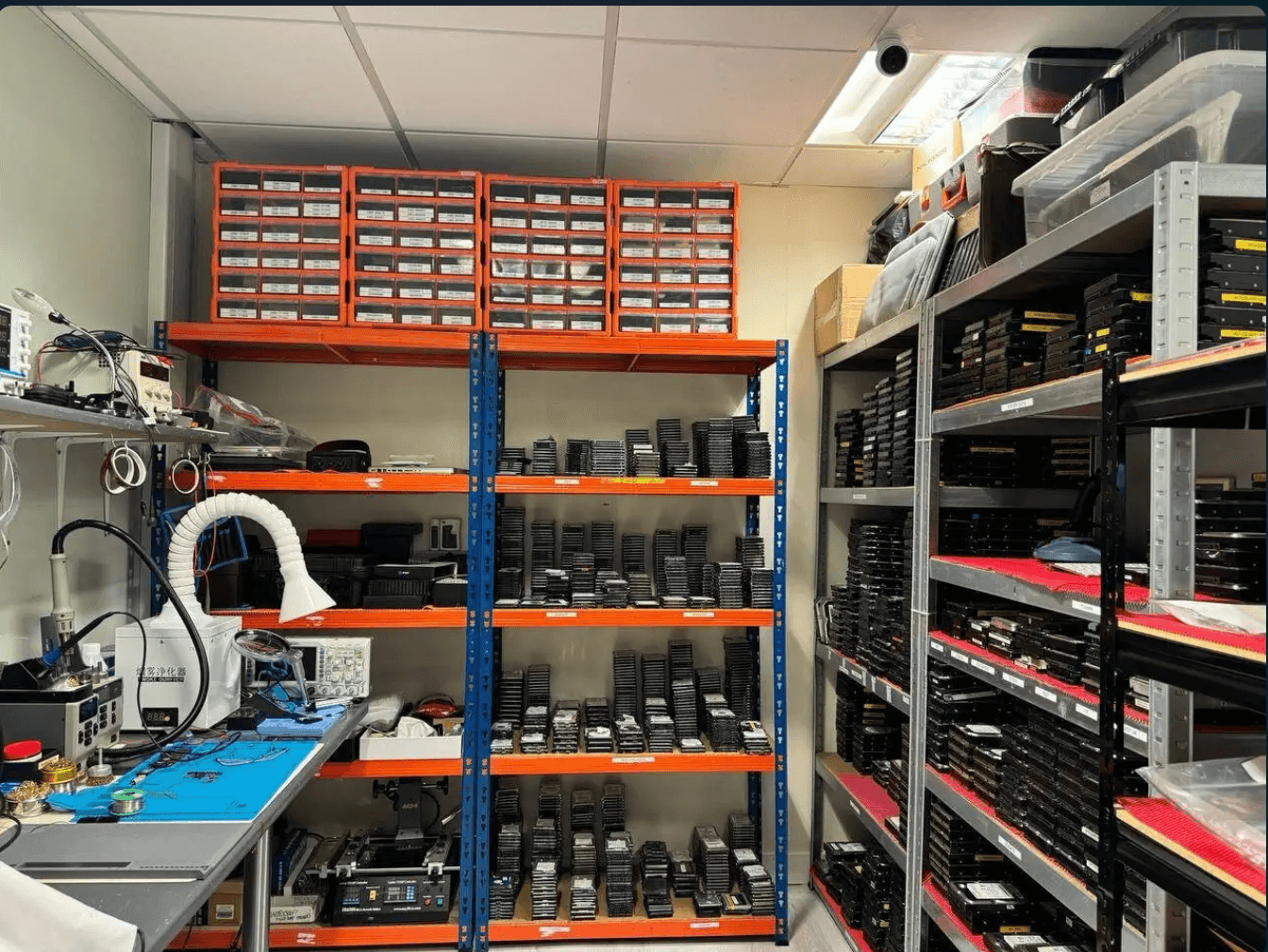
The engineers

Viktor (Dante) Burcevski
Executive Data Engineer / Owner
Board-level recovery, forensic extraction and complex storage cases.

David Williams
Co-founder · mobile & encryption
Part of Wildfire’s founding team.
Recovery work on drives
Three recorded drive cases.
These cases concern the drives stated on each card: a laptop drive, a desktop hard drive and a drive damaged by a repair scan. Their recorded outcomes do not establish what survived on your computer.
01
The laptop drive that beeped
A 2.5-inch laptop drive that beeped and never spun after a fall: the heads had stuck to the platter. A donor head stack was fitted on the clean-air bench, the drive imaged and the data verified against the client’s file list.
Recovered and verified

02
A desktop drive killed by a power surge
A 3 TB desktop hard drive dead after a surge. The original ROM was moved to a donor board, the platters were never opened, and the drive was imaged in full.
Complete image, recovery verified
One more recovery case
03
The 2TB Seagate that chkdsk made worse
Slow reads, I/O errors, then an overnight repair scan that left the volume RAW. Hardware imaging with head-friendly timeouts, then a file-system rebuild on the image. A decade of photos and a small business’s documents back, with no upfront fee.
Photo archive and documents recovered
Equipment
Different storage. Different routes to the data.
Interface adapters and diagnostic equipment establish a supported read path for removable drives and modules. The photograph illustrates equipment and connections; the assessment establishes the scope for your computer.

Checks for any laboratory
What to ask any lab about your laptop or PC.
Put these four questions to any laboratory you are considering, including this one. Each card shows what a clear answer looks like, then our own answer.
“Will I get the scope and fees in writing first?”
A clear yes, with the work, the fees and what counts as success set out before anything chargeable starts. Here: Scope and fees come in writing before approval, and nothing chargeable starts without your written approval.
“Where will my laptop or PC be worked on?”
The laboratory’s location, and the people who will actually do the work. Here: The assessment, the quote and the recovery all happen in our Brisbane laboratory, with the engineers named above.
“What do I pay if nothing is recovered?”
Which parts are charged, and when, stated plainly before you approve anything. Here: No success fee unless your data is recovered to the agreed standard; on Levels 3 to 5 the agreed upfront part stays chargeable once begun.
“How will my BitLocker key and passwords be handled?”
Never through a web form or the parcel, and only when the work needs them. Here: Keep them out of the enquiry and the parcel; the laboratory arranges a secure way to receive them at the right stage.
Ask the same of every laboratory, including how files come back: here, priority files are checked before delivery and returned on separate media, and you can call first on 1300 806 557.
05 Start
Start your laptop or PC recovery.
Describe what you have already seen and the files you need most. Your selections from this page are carried into the enquiry for you to check.
Written scope and fees before recovery.
Eligible standard diagnosis is free. No success fee unless your data is recovered to the agreed standard. Submitting this enquiry does not authorise chargeable recovery work.
See the laboratory recovery stages →
Prefer to speak to us?
1300 806 55706 Delivery
Sending your laptop or PC to us.
Request your free Express post-in label for a laptop and confirm handling instructions with the laboratory. For a desktop tower or all-in-one, call or ask in the enquiry before packing. This standard guide is for dry computers with an undamaged battery.
Cushioning and case-note guidance follow Wildfire’s published shipping information. Follow the laboratory’s advice for your damaged computer rather than a warranty-return guide.
Send a laptop whole
Send a laptop whole, with its charger, and shut it down fully (not sleep) so it cannot switch on in transit. Do not take it apart to remove the storage, and do not pack a spare or loose battery. For a desktop tower or all-in-one, ask us before packing whether to send the whole computer or the drives only.
More packing steps (3)
Cushion every side
Use a rigid box with at least 5 cm of cushioning around the computer. Fill gaps so it cannot move in transit. A laptop sleeve in a padded envelope is not enough.
Add the case details
Include your name, contact details, case reference and a short description of what happened. Note priority folders. Never write a password or recovery key in the note or on the parcel.
Seal, label and track
Seal the box securely, attach the supplied shipping label and keep the tracking details. Follow the carrier’s acceptance instructions and retain your lodgement receipt.
Wet, swollen or burnt?
Leave it off. A swollen, leaking, hot or crackling lithium battery is damaged and a fire risk: never charge it. If it is safe, unplug it, move it outside away from anything flammable and call Triple Zero (000) for help. Do not post it: Australia Post prohibits sending recalled, damaged or non-conforming lithium batteries. Call 1300 806 557 and we will agree a safe way to get it to the laboratory. Do not heat, clean or take apart a wet computer.
Passwords and recovery keys
We may need your BitLocker recovery key, a BIOS drive password or your Windows password to open and check the recovered files. Do not pack them with the computer or send them in the enquiry; the laboratory arranges a secure way to receive them at the right stage. Encrypted-drive recovery →
Need the data as evidence?
Tell us before intake. A forensic matter requires an agreed preservation, acquisition and reporting scope, with separate fees. Discuss computer forensics →
Tick the checks as you prepare the parcel.
07 Answers
Laptop and PC recovery questions.
Open a question for a direct answer. Recovery options depend on the individual computer, the storage inside it and what has happened to it.
Can you get data off a laptop that won’t turn on?
Often, but it depends on the storage inside. The screen, keyboard, battery or board can fail while the storage still holds your files. A separate drive or module can usually be read on laboratory equipment on its own, whatever happened to the rest of the laptop; read that way, a BitLocker drive still needs its recovery key. Some budget laptops have eMMC storage fixed to the board, which cannot be unplugged and read like an SSD; the assessment confirms how it can be read. Leave it off, and avoid repeated power-button attempts, borrowed chargers and opening the case. Removable or on the board →
Can I take the hard drive out of my laptop and read it myself?
On a desktop or a laptop with a removable drive, a healthy drive can sometimes be read that way, but a failing drive can get worse with each attempt, and a BitLocker drive asks for its recovery key in another computer. Some budget laptops have storage fixed to the board, so it cannot be moved at all. If the files matter, ask first.
Do you recover data from desktop PCs and all-in-ones?
Yes. Many desktop PCs have removable drives, often more than one, and some combine them as RAID or Storage Spaces. Tell us about every drive and how it was set up, and keep them together: with RAID 0, every drive is needed. All-in-ones vary by model. For a desktop tower or all-in-one, call or ask in the enquiry before packing; we will tell you whether to send the whole computer or the drives only.
Can you recover data from a Microsoft Surface?
Yes. Microsoft lists a removable SSD for Surface Laptop 3 to 6, Laptop 7th Edition (Snapdragon), Pro 7+ to Pro 10, Pro 11th Edition (Snapdragon), Pro X, Laptop Go, Laptop Studio and Studio 2+. Surface Laptop 13-inch has removable UFS storage, or a removable SSD on 1 TB models. On Surface Pro 12-inch the storage is part of the motherboard, and older models are not on Microsoft’s removable list. The assessment confirms how your Surface is read; if BitLocker is on, find the recovery key too. Surface storage by model →
Is my Windows laptop encrypted without me knowing?
Possibly. On supported hardware, Windows turns on device encryption automatically when it is set up with a Microsoft account or a work or school account, including on Windows Home. Since Windows 11 version 24H2 it needs less hardware, so it can turn on automatically on more computers. A local account does not turn it on by itself. If the computer still starts, Settings > Privacy & security > Device encryption shows whether it is on. If it shows a BitLocker recovery screen, or its drive is moved to another computer, the 48-digit recovery key is needed. Encryption you may not know you have →
Where do I find my BitLocker recovery key?
Microsoft lists your Microsoft account at aka.ms/myrecoverykey, a work or school account at aka.ms/aadrecoverykey, your IT department, a printout, a saved file or a USB stick. Check from another device and match the key ID shown on the locked screen. Microsoft cannot retrieve a lost key. Encrypted-drive recovery →
Do you need my Windows password or BitLocker key?
Sometimes. If BitLocker is on and the drive has to be read anywhere other than its own working computer, or the security chip changed, the 48-digit recovery key is needed: Microsoft says BitLocker is designed so an encrypted drive cannot be recovered without it. A BIOS drive (NVMe) password works the same way. Lenovo’s ThinkPad X1 Carbon Gen 13 guide, for example, says Lenovo cannot reset a forgotten NVMe password or recover data from the storage drive. Never send passwords or keys in an enquiry; we arrange a secure way to receive them at the right stage.
Can you get past BitLocker without the recovery key?
Microsoft says BitLocker is “designed to make the encrypted drive unrecoverable without the required authentication”, so we do not promise a way around it. Repairing the hardware does not remove the encryption. Look for the key before anything is reset: your Microsoft account (aka.ms/myrecoverykey), a work or school account (aka.ms/aadrecoverykey), your IT team, a printout or a USB stick. If the drive may be damaged as well, tell us: the assessment checks the hardware, and the key opens the files. What the recovery key is →
Can data be recovered from a laptop with liquid damage?
It depends on how quickly it was switched off and where the storage is. Liquid damages the board first, and the storage may be unharmed. A removable drive can usually be read directly; storage fixed to the board needs the board cleaned, and sometimes repaired, before it can be read. Unplug it, hold the power button until it switches off, and do not charge it, heat it or put it in rice. Why the motherboard matters →
My laptop was dropped and now it clicks. What should I do?
Switch it off and leave it off. Repeated clicking, grinding or beeping usually means a spinning hard drive with damaged heads, and each power-on can scratch the platters. Head work is Level 3 or 4 on the hard drive schedule; the assessment confirms which.
It says ‘No bootable device’. Are my files gone?
Not necessarily. The message means the computer cannot find anything to start from: the drive may have failed, its file system may be damaged, or a setting may have changed. Avoid reinstalling Windows or ‘Reset this PC’, which write over the drive. What the message means →
It says Automatic Repair couldn’t repair my PC. What should I do?
Photograph any message or stop code, and do not keep restarting it to see if it recovers. If it loops again, or the drive clicks, grinds or beeps, switch it off and leave it off. Avoid ‘Remove everything’, Cloud rebuild, Point-in-time restore and reinstalling Windows from a USB stick: they can remove or roll back your files. When Startup Repair runs by itself, Microsoft says it only repairs operating system and driver files, so the assessment checks whether Windows, the file system or the drive itself is the problem. What the repair screens do →
Will resetting Windows delete my files?
It depends on the option. ‘Reset this PC, Keep my files’ keeps personal files but removes apps and settings, and System Restore does not change personal files. ‘Remove everything’, Cloud rebuild and a clean install remove them, and Point-in-time restore rolls personal files back to an earlier restore point. If the drive was encrypted, erased files are usually unrecoverable. Tell us exactly what was chosen, and stop using the computer. Options that keep or erase files →
I deleted files on my laptop. Can they be recovered?
On a hard drive, deleted files can often be recovered if the computer has not been used much since. On many SSDs, TRIM clears deleted data quickly, so the odds are poor and fall with every minute of use. Stop using the computer, check cloud recycle bins and backups from another device, and do not install recovery software on it. Deleted file recovery →
Can you recover data from a Chromebook?
Rarely from the Chromebook itself. Its local files are encrypted with keys tied to the device and your password, and a powerwash clears them. Files synced to your Google account can be restored from there. Call before sending one.
Will my laptop be repaired?
We recover the data, not the computer. Any board work is done to get the data off, so the computer may not be fit for everyday use afterwards. Recovered files are returned on separate media.
How long does laptop data recovery take?
Timing depends on the storage, its condition, any board work or parts needed and how much has to be reconstructed. Tell us your deadline and priority folders; the laboratory explains the expected timing with the proposed scope. Tell us your deadline in the enquiry →
How much does laptop data recovery cost?
It depends on the storage and the work, not the computer. An SSD follows the SSD schedule, from Level 1 at $329 to Level 4 at $2,489, with Level 5 custom-quoted. Storage fixed to the board is priced on the SSD schedule. The level is confirmed in your written quote after the free assessment. A laptop or desktop hard drive follows the hard drive schedule, from Level 1 at $299 to Level 4 at $2,489, with Level 5 custom-quoted; on that schedule, encrypted BitLocker devices are Level 5. Each drive is assessed and quoted separately on its own schedule; two drives joined into one volume (RAID 0) are quoted per case. All figures are plus GST. Levels 1 and 2 have no upfront fee; Levels 3 to 5 include an agreed upfront fee. See the recovery levels →
Can I send my laptop or PC from Melbourne, Sydney or elsewhere in Australia?
Yes. Wildfire accepts Australia-wide mail-in cases, with a free Express post-in label for laptops. The work is done in our Brisbane laboratory. For a desktop tower or all-in-one, call or ask in the enquiry before packing. Call before posting a computer that is wet or burnt. If its battery is swollen, leaking, hot or crackling, call 1300 806 557 and we will agree a safe way to get it to the laboratory. Do not post it: Australia Post prohibits sending recalled, damaged or non-conforming lithium batteries. See the packing and delivery guide →
Is laptop data recovery worth the money?
It depends on what the files are worth to you and whether a copy exists. Stop using the computer and check backups and cloud recycle bins from another device first. If it will not power on, was dropped, got wet or smells burnt, nothing you install can help; the free assessment and written quote come before anything chargeable. Decline the quote and the computer comes back free. There is no success fee unless your data is recovered to the agreed standard; Levels 3 to 5 include an agreed upfront fee. Weighing up the cost →
Should I try data recovery software on my laptop first?
Not on the computer you need the files from. Software can only read what the computer can still see, so it cannot help a laptop or PC that will not power on, and running it on a failing drive can make it worse with each attempt. Installing it writes to the drive, and on an SSD, TRIM may already have cleared deleted data; software cannot bring erased bytes back. If the files matter, stop using the computer and ask us first. What deletion does on each drive →
08 Learn
Storage, encryption and resets explained.
Which storage is inside your computer, what deletion does on each drive, why storage on the board changes the method, the encryption you may already have, and which repair options keep or erase your files. The assessment establishes what applies to your computer.
Storage type matters
Which storage is inside your laptop or PC?
Storage type, condition and encryption determine the recovery approach. The exact model and configuration help us identify what is inside.
The five storage types

2.5- or 3.5-inch hard drive
Mechanical storage with spinning platters and read/write heads. A drop or internal fault can damage the mechanism. If the drive clicks or repeatedly struggles to spin, switch the computer off.
Found in Older laptops and many desktop PCs.

2.5-inch SATA SSD
Flash storage in a rectangular drive enclosure, with no moving platters. A common upgrade for older laptops and desktops. The fault and any encryption still affect access to the files.
Found in Upgraded laptops and desktops.
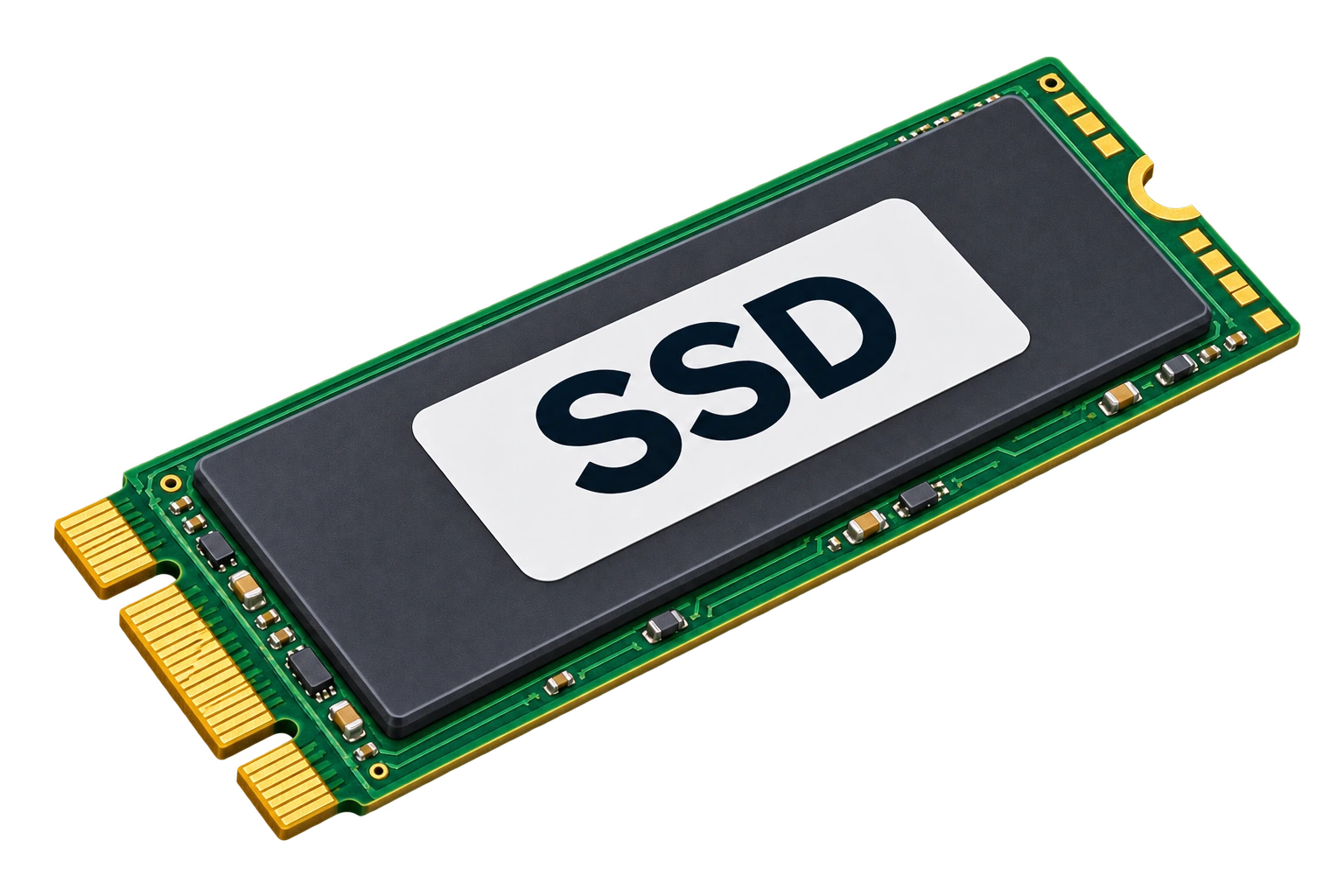
M.2 SSD module
A thin SSD module using SATA or NVMe. Many are removable, but drive condition, the correct interface and encryption still determine whether its data can be read.
Found in Many Windows laptops and desktop PCs.
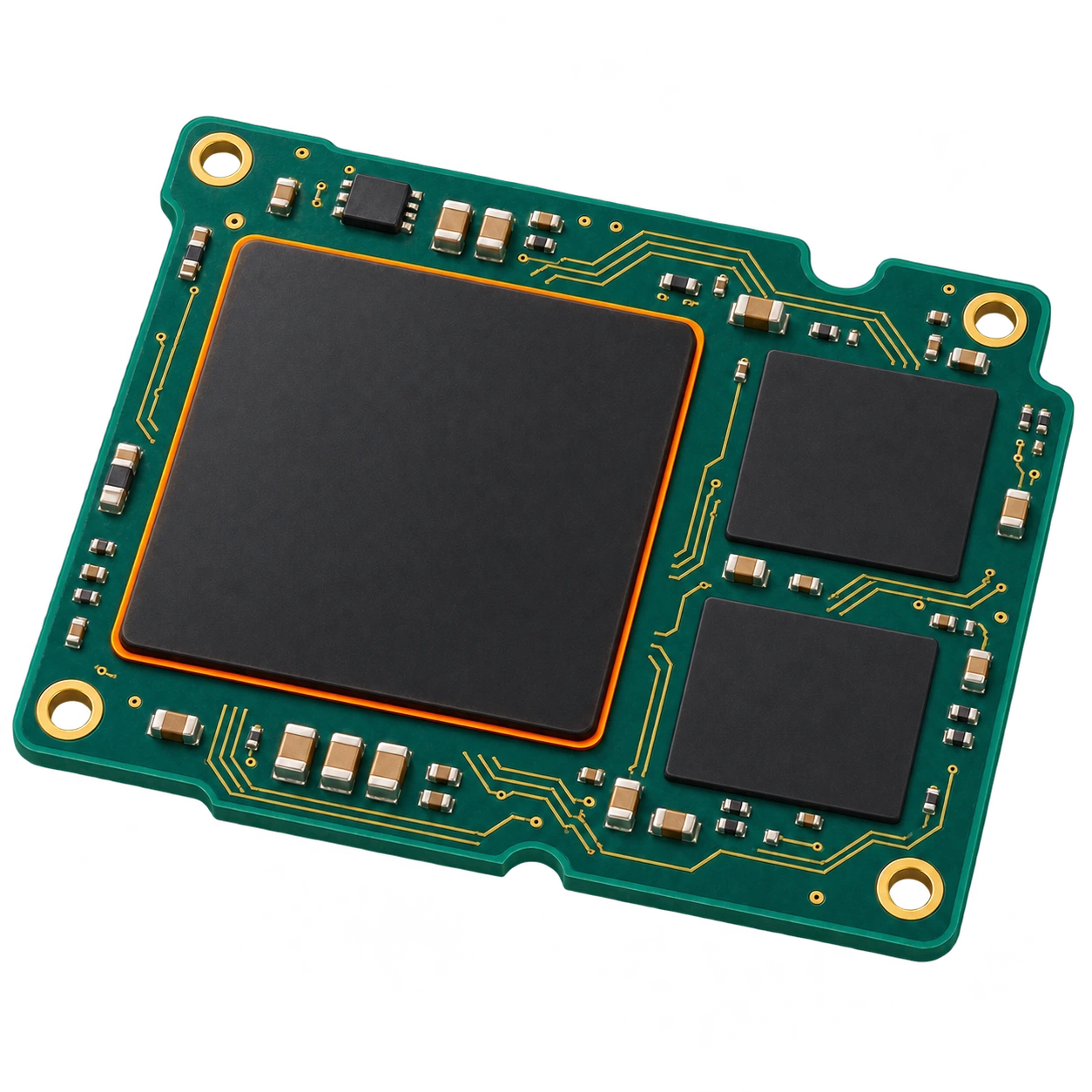
eMMC or UFS on the board
Managed flash storage soldered to the board rather than fitted in a removable drive slot. eMMC and UFS include a controller inside the storage package. Recovery depends on the device design, fault and encryption.
Found in Some compact Windows devices and selected budget laptops; configuration varies.
Multiple drives or RAID 0
A computer may contain independent drives or a combined array. RAID 0 spreads data across drives without redundancy, so a failed member can make the volume inaccessible. Keep every original drive for assessment.
Found in Some gaming laptops, workstations and desktop PCs.
Illustrations show storage formats. Exact components and layouts vary by model.
After deletion
Deleted does not mean the same thing on every drive.
A hard drive and an SSD handle deleted files differently, so what can come back depends on the storage inside.
Hard drive and SSD side by side
Deleted usually means "still there until overwritten".
A hard drive marks the space as free and leaves the magnetic data in place. Unless something writes over it, a deleted file can often be read back, which is why recovery software has a reputation for working on hard drives.
Deleted can mean "already unavailable".
After deletion, TRIM can tell the SSD those logical blocks are no longer needed. The controller may stop returning their contents and later erase the NAND in the background, on its own timetable. Software cannot bring erased bytes back.
Removable or on the board
Why storage on the board changes the method.
A removable drive can be read on laboratory equipment whatever happened to the rest of the computer. Storage fixed to the board is read by the method the model allows, which the assessment confirms.
Removable and on-board storage side by side
Read on its own
The drive or module comes out and is imaged on laboratory equipment, whatever happened to the rest of the computer. A dead board, a broken screen or a spill on the keyboard often leaves the drive readable. If it is encrypted with BitLocker, the recovery key is still needed to open the files.
Read by the route the model allows
Some budget laptops, such as some IdeaPad 1 models, have eMMC storage fixed to the system board, and Microsoft lists the storage of Surface Pro 12-inch as part of its motherboard. This storage cannot be unplugged and read like an SSD. The route depends on the model and the fault, and the assessment confirms it. If BitLocker is on, the recovery key is needed whenever the storage is read anywhere other than its own working computer.
Encryption
Encryption you may not know you have.
Many computers encrypt their storage without anyone switching it on. Repairing the hardware does not remove encryption, so the password or recovery key matters as much as the repair.
Three kinds of encryption, and where to find the key
Windows device encryption
On supported hardware, Windows turns on device encryption automatically when it is set up with a Microsoft account or a work or school account, including on Windows Home. A local account does not turn it on by itself. Since Windows 11 version 24H2 it needs less hardware, so it can turn on automatically on more computers. A firmware or TPM change, or moving the drive to another computer, can then ask for the 48-digit recovery key. Microsoft cannot retrieve a lost key.
BitLocker on work and school computers
Signing in with a work or school account can turn on device encryption and saves the recovery key to that account. Look the key up from another device at aka.ms/aadrecoverykey, or ask your IT team, before anything is reset: Microsoft says a reset removes all of your files.
BIOS drive passwords
Some business laptops can set a BIOS drive (NVMe) password. Lenovo’s ThinkPad X1 Carbon Gen 13 guide says Lenovo cannot reset a forgotten one or recover data from the drive. If one was set, tell us in the enquiry, but never send the password itself.
Where to find a BitLocker recovery key
Your Microsoft account (aka.ms/myrecoverykey), a work or school account (aka.ms/aadrecoverykey), your IT team, a printout, a saved file or a USB stick. Never send the key in an enquiry; we will arrange how to receive it. Microsoft’s guide ↗
Before you press anything
Options that keep your files, and options that erase them.
Windows repair menus mix safe and destructive options under similar names. This is what each common one does to personal files.
What each option does to your files
Keep files, but still write to the disk
- Reset this PC, Keep my files. Reinstalls Windows and keeps personal files, but removes apps and settings.
- System Restore. Rolls back system files and settings, not personal files.
- Startup Repair. When it runs by itself, Microsoft says it only repairs operating system and driver files.
Can make recovery impossible
- Reset this PC, Remove everything. Removes all personal files, apps and settings.
- A clean install from a USB stick or DVD. Removes everything on the drive.
- Resetting a BitLocker-locked PC without the key. Microsoft says a reset removes all of your files.
- Cloud rebuild in Windows 11. Removes personal files, apps and settings.
- Point-in-time restore in Windows 11 version 24H2 or later. Rolls back apps, settings and personal files to an earlier restore point, not only system files.
09 Library
Look up your laptop or PC. Find a useful answer.
Search a brand, an error message or a term. Each record has a direct link so you can return to it. Brand records can set the computer for your recovery path, and error records can carry the symptom into your enquiry.
For example: Dell XPS, Surface Pro, BitLocker recovery key, Automatic Repair or RAID 0.
Windows laptop and desktop makers, Surface and Chromebooks. Storage varies by model, so these notes describe what to check rather than what every model has.
Computer brandsDell laptops and desktopsXPS, Inspiron, Latitude, Vostro, Alienware, OptiPlex
- Storage
- Many are removable M.2 NVMe SSDs (2230 or 2280). Some budget Inspiron and Vostro models take a 2.5-inch hard drive instead
- Watch for
- Some Alienware laptops can be set up with two SSDs in RAID 0, where every drive in the array is needed. Intel RST/VMD settings can also hide the drive from a Windows installer
- Recovery
- Image the drive; send the whole laptop so the original setup can be checked
Source checked 6 November 2026 · Bookmark this record
Computer brandsHP laptops and desktopsSpectre, Envy, Pavilion, EliteBook, ProBook, OMEN, Victus
- Storage
- Varies by model
- Watch for
- Storage that differs from model to model, and BitLocker device encryption
- Recovery
- Send the whole laptop; the assessment confirms what is inside and how it is read
The manufacturer page could not be opened during checking; the storage is confirmed at assessment · Bookmark this record
Computer brandsLenovo laptops and desktopsThinkPad, IdeaPad, Yoga, Legion, ThinkCentre
- Storage
- ThinkPads usually have one removable M.2 SSD; Legion models can have two
- Watch for
- Some business laptops can set a BIOS drive (NVMe) password; Lenovo’s ThinkPad X1 Carbon Gen 13 guide says Lenovo cannot reset a forgotten one or recover data from the drive. Some budget IdeaPad models have eMMC storage on the system board instead of an SSD slot
- Recovery
- Image the drive; tell us about any BIOS or drive password, but do not send it in the enquiry
Source checked 6 November 2026 · Bookmark this record
Computer brandsASUS and Acer laptopsZenbook, Vivobook, ROG, TUF · Aspire, Swift, Nitro, Predator
- Storage
- M.2 SSDs on many current models; gaming models can carry two
- Watch for
- Budget Vivobook Go models with eMMC storage; Predator laptops with drives set up in RAID
- Recovery
- Image the drive or drives; RAID 0 needs every member
Source checked 6 November 2026 · Bookmark this record
Computer brandsMicrosoft SurfaceLaptop, Pro, Laptop Go, Book, Go, Studio
- Storage
- A removable SSD on the models Microsoft lists: Surface Laptop 3 to 6 and Laptop 7th Edition (Snapdragon), Pro 7+ to Pro 10 and Pro 11th Edition (Snapdragon), Pro X, Laptop Go, Laptop Studio and Studio 2+. Surface Laptop 13-inch has removable UFS storage, or a removable SSD on 1 TB models
- Watch for
- Storage that is part of the motherboard on Surface Pro 12-inch, and older models not on Microsoft’s removable list; BitLocker device encryption is common
- Recovery
- Image a removable SSD; storage on the board is read by the route the assessment confirms. The BitLocker key is usually needed
Source checked 6 November 2026 · Bookmark this record
Computer brandsGaming laptops with two SSDsMSI, Razer, Gigabyte AORUS, Alienware, ROG, Legion
- Storage
- Two M.2 NVMe slots are common
- Watch for
- Two drives run as one array (RAID 0 through Intel RST): Intel warns that if one disk fails, all data on the array is lost
- Recovery
- Send the laptop with both drives in place, tell us how they were set up, and do not recreate the array
Source checked 6 November 2026 · Bookmark this record
Computer brandsSamsung Galaxy Book and LG gramThin and light laptops
- Storage
- M.2 NVMe SSDs; many LG gram models have two slots
- Watch for
- A second drive added later, and BitLocker device encryption
- Recovery
- Image the drive or drives
Source checked 6 November 2026 · Bookmark this record
Computer brandsDynabook and Toshiba laptopsPortégé, Tecra, Satellite
- Storage
- Current Dynabook models use M.2 SSDs; older Toshiba laptops commonly used 2.5-inch hard drives
- Watch for
- Clicking or beeping from an older hard drive after a knock
- Recovery
- Image the drive; a damaged hard drive may need head work first
The manufacturer page could not be opened during checking; the storage is confirmed at assessment · Bookmark this record
Computer brandsPanasonic ToughbookRugged laptops
- Storage
- Recent models such as the Toughbook 40 use quick-release NVMe SSDs
- Watch for
- Self-encrypting (Opal) drives and BIOS passwords
- Recovery
- Leave the drive in the laptop and send them together; arrange any passwords with us separately
Source checked 6 November 2026 · Bookmark this record
Computer brandsHuawei MateBookThin and light laptops
- Storage
- Varies by model
- Watch for
- How the drive is fitted varies by model
- Recovery
- Send the whole laptop; the assessment confirms how the drive is read
The manufacturer page could not be opened during checking; the storage is confirmed at assessment · Bookmark this record
Computer brandsDesktop PCs, workstations and custom buildsTowers, all-in-ones and home-built PCs
- Storage
- Usually removable: M.2 SSDs plus 2.5 or 3.5-inch drives, often more than one
- Watch for
- Drives combined as RAID or Storage Spaces, and BitLocker on fixed drives
- Recovery
- Ask whether to send the drives only. Label each one with its position and keep them together
Source checked 6 November 2026 · Bookmark this record
Computer brandsChromebooksAny brand running ChromeOS
- Storage
- Usually eMMC or SSD storage; varies by model
- Watch for
- Local files are encrypted with keys tied to the device and your password. A powerwash clears the keys
- Recovery
- After a powerwash, local files cannot be recovered. Synced files can be restored from your Google account. Call before sending one
Source checked 6 November 2026 · Bookmark this record
Error message‘We couldn’t find any drives’ in a Windows installerIntel RST and VMD on 11th-gen Intel and newer
- What happens
- On many laptops with Intel 11th-generation processors or newer, a standard Windows installer shows no drives until the Intel RST/VMD driver is loaded
- What it means
- The drive may be fine. A missing drive in the installer is not, on its own, a sign of failure
- Do not
- Change storage settings in BIOS or install Windows to ‘find’ the drive
Source checked 6 November 2026 · Bookmark this record
Error message‘No bootable device’ or ‘Operating system not found’Windows laptops and desktops
The computer’s firmware cannot find anything it can start from. The drive may have failed or dropped out, its file system may be damaged, or a setting such as the boot order may have changed. Unplug USB drives and memory cards and restart once. If the drive is not listed in the BIOS or UEFI setup screen, or it clicks or comes and goes, stop there. Manufacturer fix lists often end with reinstalling Windows, which can overwrite the files.
The manufacturer page could not be opened during checking; the cause is confirmed at assessment · Bookmark this record
Error messageBitLocker recovery screenWindows asks for a 48-digit recovery key
Windows has locked the drive and needs its recovery key. Microsoft lists common triggers: a BIOS or UEFI firmware update, turning off or clearing the TPM, a new motherboard, moving the drive to another computer, and docking or undocking. Note the key ID shown, then find the key from another device: aka.ms/myrecoverykey for a Microsoft account, aka.ms/aadrecoverykey or your IT team for a work device. Microsoft cannot retrieve a lost key. If you know what changed just before, such as docking or a BIOS setting, undoing it may clear the prompt. Microsoft’s last resort is a reset that removes all files, so call before that.
Source checked 6 November 2026 · Bookmark this record
Error message‘Automatic Repair couldn’t repair your PC’A Windows repair loop
Windows starts its recovery tools by itself after repeated failed startups. When Startup Repair runs by itself, Microsoft says it only repairs operating system and driver files. On the next screens, ‘Reset this PC, Keep my files’ keeps personal files but removes apps, while ‘Remove everything’ removes the files too. If the drive may be failing or the files are not backed up, stop here and call.
Source checked 6 November 2026 · Bookmark this record
Error message‘Scanning and repairing drive’ or CHKDSKWindows file-system repair
CHKDSK with repair options changes the file system as it fixes it, and a full scan reads every sector, which can take hours on a large hard drive. On a drive that is failing, that much reading can make things worse. If the files matter, let the laboratory copy the drive first.
Source checked 6 November 2026 · Bookmark this record
Error messageSMART warning, clicking or grindingThe drive reports or sounds like a fault
A SMART warning is the drive’s own health monitoring reporting a problem. Clicking, grinding or scraping from a hard drive usually means a physical fault; Seagate advises shutting down straight away and not powering up again. If a silent drive with a warning still works, copy the most important files once to another drive, then stop.
Source checked 6 November 2026 · Bookmark this record
GlossaryBitLocker and device encryptionWindows disk encryption
Windows encryption for the system drive and other fixed drives. Device encryption, available on Windows Home, turns BitLocker on automatically on supported hardware when Windows is set up with a Microsoft account or a work or school account. Microsoft says BitLocker is designed so an encrypted drive cannot be recovered without the recovery key or password.
Source checked 6 November 2026 · Bookmark this record
GlossaryBitLocker recovery keyThe 48-digit key that opens a locked drive
The 48-digit number, in eight groups, that unlocks a BitLocker drive when Windows cannot unlock it by itself. If the drive has to be read anywhere other than its own working computer, or the security chip changed, the recovery key is needed to open the files. Microsoft says the TPM is not involved in recovery, so the key still works if the TPM fails or is removed. It may be saved in a Microsoft account (aka.ms/myrecoverykey), a work or school account (aka.ms/aadrecoverykey), on a printout or on a USB stick. Never send it in an enquiry; we arrange a secure way to receive it at the right stage.
Source checked 6 November 2026 · Bookmark this record
GlossaryTPMTrusted Platform Module
A security chip on Windows computers that holds BitLocker’s keys so the drive unlocks at startup. If the TPM or the motherboard changes, BitLocker asks for the recovery key. Microsoft notes that the recovery key still works without the original TPM.
Source checked 6 November 2026 · Bookmark this record
GlossaryBIOS drive (NVMe) passwordA drive password set in the BIOS
A password set in the BIOS or UEFI setup to protect the storage drive. Some business laptops can set one. Lenovo’s ThinkPad X1 Carbon Gen 13 guide says Lenovo cannot reset a forgotten NVMe password or recover data from the storage drive. Tell us if one was set, but do not send it in the enquiry.
Source checked 6 November 2026 · Bookmark this record
GlossarySelf-encrypting drive (Opal)Encryption built into the drive
An SSD with encryption built into the drive itself, made to the Opal standard. Some business laptops offer one: Dell lists a 512 GB Opal 2.0 self-encrypting SSD option for the Latitude 7450 2-in-1, for example. If your computer was set up by a business or an IT team, tell us, so the assessment can check how its drives are protected.
Source checked 6 November 2026 · Bookmark this record
GlossaryMotherboardAlso called the logic board or system board
The main circuit board of a computer: processor, memory, power circuits and, on some laptops, the storage chips. Surface Pro 12-inch, for example, counts its storage as part of the motherboard. Liquid, power surges and drops can damage it. Storage fixed to the board is read by the method the model allows, which the assessment confirms.
Source checked 6 November 2026 · Bookmark this record
GlossaryM.2, NVMe and SATASSD formats
M.2 is a card format; the numbers 2230, 2242 and 2280 give its width and length in millimetres. An M.2 card uses either SATA or the faster NVMe over PCIe. Similar-looking cards can need different connections and recovery methods.
Source checked 6 November 2026 · Bookmark this record
GlossaryeMMC and UFSSmall flash storage on the board
Flash storage packages used in budget laptops, Chromebooks and some tablets, often fixed to the board rather than in a slot. Some models sell the board and storage as one part: Surface Pro 12-inch counts its UFS storage as part of the motherboard. Surface Laptop 13-inch has removable UFS storage, or a removable SSD on 1 TB models. The assessment confirms how it can be read.
Lenovo PSREF: eMMC on the system board ↗Microsoft: Surface Pro 12-inch specifications ↗Microsoft: Surface Laptop 13-inch specifications ↗
Source checked 6 November 2026 · Bookmark this record
GlossaryTRIMWhy deleted files disappear quickly on SSDs
A command the operating system sends to an SSD to say which blocks no longer hold live data. The SSD can then clear those blocks in the background, so deleted files on many SSDs become unrecoverable much sooner than on a hard drive. Windows has TRIM on by default.
Source checked 6 November 2026 · Bookmark this record
GlossaryRAID 0Two drives run as one
Two or more drives combined into one fast volume, with each file split across them. There is no redundancy: Intel warns that if one disk fails, all data is lost, so recovery needs every member drive.
Source checked 6 November 2026 · Bookmark this record
No records match that search. Try a brand, a model or a shorter phrase, or ask us directly.
Looking for a Mac? See Mac data recovery →
Sources for the library records
These are the pages the library records link to, numbered in the order each first appears.
Numbered source list
- Dell: XPS 13 9340 storage (opens in a new tab)
- HP: EliteBook 840 G11 specifications (opens in a new tab)
- Lenovo: ThinkPad X1 Carbon Gen 13 passwords (opens in a new tab)
- Acer: Predator Helios 500 drives (opens in a new tab)
- Microsoft: Surface SSD removal (opens in a new tab)
- Microsoft: Surface Laptop 13-inch specifications (opens in a new tab)
- Intel: RAID levels (opens in a new tab)
- LG: gram 16Z90S specifications (opens in a new tab)
- Dynabook Australia and New Zealand (opens in a new tab)
- Panasonic: Toughbook 40 specification (opens in a new tab)
- Dell: XPS 8960 storage (opens in a new tab)
- Google: Chromebook data and powerwash (opens in a new tab)
- Dell: no drives found during installation (opens in a new tab)
- HP: boot device not found (3F0) (opens in a new tab)
- Microsoft: BitLocker recovery overview (opens in a new tab)
- Microsoft: chkdsk (opens in a new tab)
- Seagate: When Data Loss Occurs (PDF) (opens in a new tab)
- Microsoft: device encryption (opens in a new tab)
- Microsoft: BitLocker FAQ (opens in a new tab)
- Dell: Latitude 7450 2-in-1 storage (opens in a new tab)
- Microsoft: Surface Pro 12-inch specifications (opens in a new tab)
- Lenovo PSREF: eMMC on the system board (opens in a new tab)
- Microsoft: fsutil behavior (DisableDeleteNotify) (opens in a new tab)
Ready when you are
Lost files on a laptop or PC?
Start with a free assessment.
Free eligible standard diagnosis. Written scope and fees before any chargeable recovery work.