⚠ Do now
★ 4.8 · 96 Google reviewsBrisbane laboratoryLocked phone guide
Can you recover data from a locked iPhone?
Sometimes. The right route depends on where the files still exist.
A known passcode, an accessible copy, a repair that lets the owner unlock the phone, or a supported forensic method may provide a route. Those are different ways of recovering data, with different requirements. A cable, an Apple Account login or a reset prompt cannot confirm that the files on this particular phone can be recovered.
Before an erase, establish what is actually stored elsewhere and what still needs the original iPhone.
Talk to the lab: 1300 806 557
Reviewed by David Williams and Viktor Burcevski · Last reviewed 10 November 2026

Find the source before changing the phone
Your files may exist in more than one place.
The locked iPhone, a synced library and a dated backup are different sources. Finding a usable copy elsewhere can recover the files you need without changing the phone. The first question is whether that copy actually contains them.
Files on this iPhone
Some may be local only. A lock screen does not tell you which copies completed.
SYNCED LIBRARIESKept up to date across devices
For example, iCloud Photos or Messages in iCloud. Check the actual items and upload status.
DATED DEVICE BACKUPSA snapshot to verify
A saved iCloud or computer backup has a date, scope and access requirements.
SEPARATELY SAVED FILESAn independent copy you can open
A previous export, downloaded attachment or saved folder may contain the wanted files.
Syncing and backing up are different.
When iCloud Photos is used, its photos and videos are maintained in the synced library and are not duplicated in the daily device backup. Messages in iCloud follows the same distinction. With those sync services off, the relevant information may instead be included in an existing device backup.
That makes the settings useful clues, not proof. A library can stop uploading because of storage, connection or other conditions. A remembered “On” setting cannot establish that the last holiday, recent messages or every attachment reached iCloud.
A synced library also changes over time. For example, deleting an iCloud Photos item on one connected device deletes it across the library. A visible synced item and an independently saved copy are different kinds of protection.
Start with a short list of what matters: an album, a conversation, a date range or particular documents. Finding older photos elsewhere can be valuable while still leaving recent items only on the phone. Record which items you have actually opened, which still need checking and which have no located copy. That gives the engineer a clearer target than simply saying “there is a backup”.
A backup is useful only if it is accessible.
An encrypted Finder, Apple Devices or iTunes backup has its own password. Creating a new backup password does not unlock an older encrypted backup. Preserve the original backup files and their dates; do not overwrite or delete a valuable copy merely to test a new method.
Cloud access can have its own limits. Advanced Data Protection turns off iCloud web data access by default; approved web access may require a trusted device. An unavailable iCloud.com view does not establish that no copy exists. Check existing authorised devices and account access without changing the locked iPhone.
Keep a note of the source device, backup date and the files you still need. A copy may solve part of the problem without replacing everything stored locally. Discuss the remaining gaps before authorising an erase.
A route depends on the situation
Four routes worth checking before an erase
Retrieving an existing copy and accessing the locked handset are different tasks. Select a route to see its requirements and a useful next step.
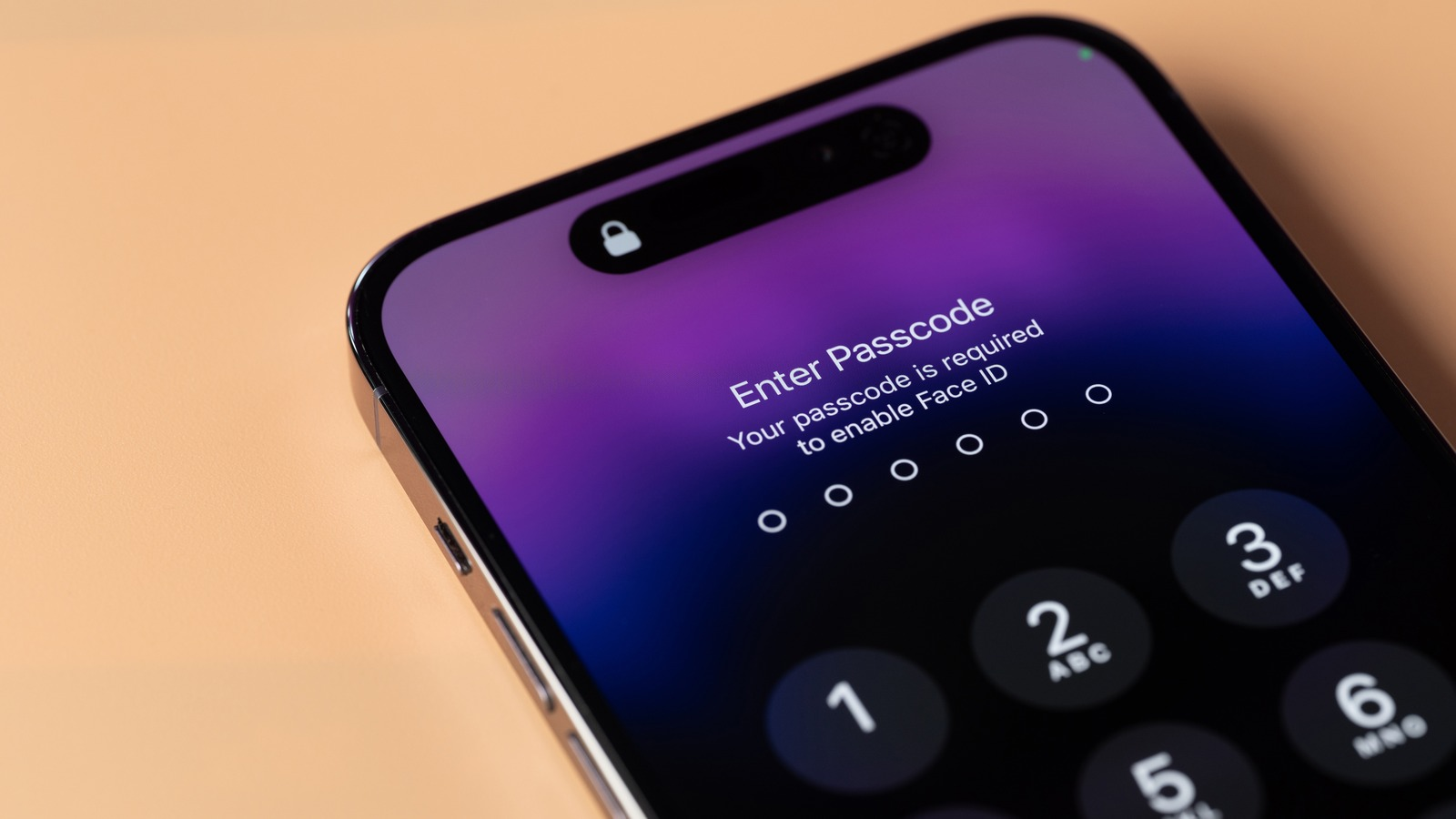
Start with the actual situation
A locked screen does not tell the whole story.
A working phone with a forgotten passcode, a broken screen that prevents entry, and a usable copy already stored elsewhere need different approaches.
The routes below separate those situations. None is a compatibility result for your particular iPhone.

A known passcode, or an eligible previous one
Use a current passcode only when the device allows it. On iOS 17 or later, a known previous passcode may work within 72 hours of a change if it was not expired early. The eligible on-screen option and other requirements still matter.
Next: check that exact route before considering a reset. Do not manufacture more failed entries to reveal an option.
Read the non-erasing routesFind usable copies without erasing this phone
Check accessible synced libraries, dated iCloud or computer backups, independent exports and other app accounts. Match the actual wanted files and period. A backup entry or account subscription alone does not prove completeness.
Next: preserve what you find, confirm required access and record the gaps. The copy checklist helps organise that review.
Build your copy checklistRepair enough to authenticate and copy
If you know the passcode but a broken screen, connector or board fault prevents entry, a suitable repair may allow normal access. The aim is a usable data extraction from your phone, not a promise that every damaged device can be repaired.
Next: describe the fault and whether the passcode is known. After liquid, unusual heat or swelling, seek handling advice before more power or charging.
Explore broken-screen recoveryCheck an exact supported forensic route
Some model, software and security-state combinations have a supported specialist route; others do not. Hardware condition and the requested files also affect what can be obtained. A past success or tool licence is not a universal compatibility list.
Next: request a model and state assessment. We establish authority, discuss the available method and quote for proposed work before proceeding.
Ask about this iPhoneWork or school phone? Its existing authorised IT team may have a supported management command or previously saved unlock token. Prior setup matters; adding management now is not a general rescue. Keep passcodes and account credentials out of the enquiry.
Before anything is erased
What an erase would cost you
An erase removes the data stored on the iPhone. Getting information back afterwards depends on usable copies that already exist. A remembered setting or backup date cannot confirm that the files you need are included.
On this iPhoneLocal encrypted files
Possible copiesSynced items or dated backups
A setting is a starting point.
iCloud Photos
Check the wanted photos in an accessible synced library. Uploads can pause; an enabled setting is not proof that every item arrived. Photos using this service are separate from the daily device backup.
Messages in iCloud
Check an authorised Apple device using the same account. Messages are not browsed at iCloud.com. When message sync is off, a device backup may contain messages from its saved period.
A dated device backup
Match it to this iPhone and the dates you need. Check included data and usable account access. An encrypted computer backup has its own password; resetting that password does not unlock an older backup.
Preserve the copies you find. Do not erase the phone or overwrite a valuable backup just to test a restore. Restricted iCloud web access, including with Advanced Data Protection, does not by itself mean no copy exists.
Copy checklist · iPhone
What should you verify first?
Choose what you remember. The result suggests places to check; it does not inspect your phone or account.
Your verification plan
- PhotosChoose a Photos answer to see what to check.
- MessagesChoose a Messages answer to see what to check.
- Device backupChoose a backup answer to review the possible date gap.
No alternative copy has been verified by this page. Keep the phone while you establish what exists elsewhere.
0 of 3 checks recorded by you.
This checklist uses your answers. It cannot confirm that an erase is safe, that a backup is complete or that recovery is supported. Nothing you select is submitted.
A checklist you can keep beside you.
Two printable pages for recording which copy, date range and access still need checking. No changes to the locked phone.
Look beyond the device backup
Other places the photos may already be.
A useful copy may be smaller than a complete phone backup. Finding one important album, attachment or conversation can change what you still need from the handset.
SHARED ITEMS
Shared Albums
Check albums that are already accessible from another device or participant. Items in a Shared Album are not automatically saved to your own library. Save the wanted copies separately and check their quality: resolution, availability and access depend on the album’s version and sharing settings.
An album can be deleted or access withdrawn; some temporary albums expire. A shared selection is not necessarily the full camera roll.
APP-SPECIFIC BACKUPSWhatsApp
Check for an existing successful chat backup, the account and phone number it belongs to, and its date. An encrypted backup may require its original passkey, password or 64-digit key. A new passkey does not unlock the old copy.
Later messages and media omitted from that backup may be absent. New backups can replace the copy containing missing chats, so preserve it and plan a restore separately. Do not reinstall the only valuable phone as a test.
EXISTING ACCOUNTS
Photo services and earlier exports
Check accounts you already used, such as Google Photos, OneDrive or Dropbox, and folders previously saved to a computer or drive. Verify the actual files and dates. The presence of an app or subscription does not prove it uploaded this phone’s photos.
ALREADY SHARED WITH SOMEONE
The other side of a conversation
People you sent photos, videos or documents to may still have their copies. Check sent email and existing message attachments, with the other person’s agreement. Download and open the wanted files; a preview or thumbnail may not be the original.
No alternative copy found yet? That does not establish the phone’s recoverability. Keep the device and existing backups available for assessment. Account passwords, passcodes, backup passwords and recovery keys belong in an agreed secure exchange, not an ordinary enquiry.
What a program can actually read
Why a cable or recovery app does not establish access
Software can be useful when it has a source it can actually read. A purchase, cable or download does not establish access to locked storage.
Apple’s Data Protection uses encryption keys tied to the device’s hardware and, for protected data classes, the passcode. A normal new computer connection asks the owner to unlock the iPhone and trust the computer. Wired-access settings and previously authorised connections can affect what is available; they do not make an unknown phone universally readable.
Ask what the product will read. An accessible computer backup, an account export and the phone itself are different sources. A program may help inspect a usable backup or organise extracted files without being able to unlock the handset. Check the required account, backup password, device access and licence before paying for a promised result.
Specialist forensic acquisition is assessed separately. The exact model, iOS build, whether the device has been unlocked since startup, its condition and the licensed method all matter. A vendor saying it supports an iOS version does not establish complete extraction from every phone running it.
Protected device dataPasscode and hardware protection remain relevant.
A permitted sourceSoftware needs a usable backup, authorised connection or assessed specialist method.


Record the message, not an assumption
A progress screen is not a recovered-file list.
Tell the engineer the exact message, what happened before it and which operation was started. A visible progress bar cannot establish that the wanted photos or messages are accessible.
Do not interrupt an active update or restore to experiment with another unlock procedure. The current operation and the condition of the phone need to be understood first.
Recovery mode is a service state, not proof of access.
Entering recovery mode or DFU mode alone is not an erase. Completing an ordinary Restore erases local data. Update attempts a software reinstall with data retained; it does not remove an unknown passcode or guarantee repair. The specific operation and the condition of the phone matter.
Read the Recovery and DFU guide before approving a software action. The locked-phone mode overview explains where it fits in an assessment. For a Galaxy, use our Samsung guide.
Honest limits
When the original files may remain out of reach
A locked screen is not a complete diagnosis. Neither a backup record nor a successful historical case can establish the outcome for another phone.
An erase changes the available route.
Apple’s cryptographic erase destroys the relevant keys protecting local data. A subsequent recovery normally needs a surviving copy: a usable backup, synced library or independently saved file. A reset is not a harmless test of what might be recoverable.
The wanted data may stay inaccessible.
A model or security state may have no available data-preserving method. An extraction can also be limited to some categories. Ask whether the supported result includes the photos, messages or app records that actually matter to you.
Repair and access may both be needed.
Physical damage to storage, the processor or the components needed for decryption can prevent recovery. Repairing a screen with a known passcode is a different problem from a forgotten credential on otherwise working hardware.
Preserve the current state. Do not keep guessing passcodes or restart, update or restore simply to discover what happens. If the device is wet, unusually hot, damaged or has a swollen battery, contact the lab before charging or handling it further. Tell the engineer what has already been tried.
When the owner has died
A family member’s locked iPhone
There may be memories in the Apple Account and a different set still on the phone. Check those two routes separately, before anyone authorises an erase.
Route A · eligible account data
Apple Account and Digital Legacy
A person appointed as a Legacy Contact can request access using their access key and the required death documentation. Apple reviews the request. Eligible account data may include photos, messages, notes, files and device backups; the route does not promise every category or every file.
Purchased media, subscriptions and iCloud Keychain information such as passwords are excluded from Legacy Contact access. If no Legacy Contact was appointed, Apple has a separate deceased-account request process. Documentation varies; Apple says alternative documentation may be accepted in Australia instead of a court order.
Route B · files on the device
The iPhone’s own storage
Account approval does not reveal or remove the iPhone’s screen passcode. Apple says it cannot remove that passcode while preserving the device’s data. Photos that never synced or entered a usable backup may therefore require a separate assessment of the handset.
A specialist route, if supported, still depends on the exact model, software, security state and condition. Estate authority permits us to assess the request; paperwork does not itself defeat the phone’s encryption or establish that extraction will succeed.
Wildfire’s estate intake requirements. We ask for the death certificate, with the grant of probate or letters of administration; where the estate does not need a grant, the will naming you as executor. These are our intake requirements, separate from Apple’s account process and the legal position of an individual estate.
Keep the phone and existing backups unchanged while the appropriate route is established. You do not need to send account passwords, passcodes or recovery keys in the enquiry. The steps for a family, in order →
Conceptual illustrations distinguish account access from device access. They are not screenshots or a guarantee of recoverable data.
At the lab
What happens when you send it to us
The first decision is whether there is a supported route for this phone and the files you need. An unlocked screen, a forensic copy and a complete set of wanted files are different outcomes.
Prepare useful details. Tell us the model and iOS version if already known, the screen message, the data you need and anything already attempted. Do not update or reset the phone to discover its version.
For a work or school phone, involve its existing authorised IT team. Its prior management setup may offer an option that an ordinary personal-device reset guide does not.
What it costs →- Free model check. Tell us the model, the iOS version if you know it, and what happened. We say plainly whether there is a route.
- Proof it’s yours, or that you act for the owner. A receipt, the carrier account, or the Apple Account the iPhone uses; for an estate, the papers above.
- A written quote before any work. If there is no route, there is nothing to pay.
- The work. A repair first if the iPhone is broken, then the unlock or a forensic copy with licensed tools.
- Your data back. The photos and messages are returned to you, and our working copy is wiped 14 days after delivery.
When copies are not enough
Ask before anything is erased.
An assessment starts with the exact device and the files you need. The copy check above is a planning aid; it cannot confirm that a backup exists or that a phone is supported.
We work for the owner or someone with lawful authority. Tell us what happened and which copies you can already access. We can distinguish a repair, an existing copy and a supported specialist route before proposed work is quoted.
Need confidentiality? We sign an NDA on request, and on every forensic case as standard. Keep passcodes, Apple Account passwords, backup passwords and recovery keys out of the enquiry.
Questions people ask
More about data on a locked iPhone
Short answers to the decisions that matter before a reset, software purchase or lab assessment.
Is there any way to get pictures off a locked iPhone?+
Possibly. An accessible synced library or backup may contain them without using the phone. A known current or eligible previous passcode may open the handset, a repair may let the owner authenticate, or a supported specialist method may be available. Check the exact copies and device rather than assuming every route returns every photo.
Does knowing the Apple Account password unlock the phone?+
It can help access eligible account copies, subject to authentication and security settings. It does not replace the screen passcode or decrypt all phone-local data. Some iCloud web access needs approval from a trusted device. Account access, Activation Lock and the phone’s encrypted files are separate issues.
Does an iCloud Backup contain all my photos and messages?+
Not necessarily. When iCloud Photos or Messages in iCloud is enabled, those synced categories are kept separately from the daily device backup. Content depends on settings, completion and the backup date. Verify the wanted items and access requirements; a recent backup entry alone is not proof that everything you need is included.
Can I check Messages at iCloud.com?+
Messages in iCloud is not a browseable Messages inbox on iCloud.com. Check an existing suitable Apple device already signed in to the same account, and establish what synced there. Do not treat the lack of a Messages web app as proof that no synced copy exists.
What if the computer backup has a forgotten password?+
An encrypted computer backup has its own password. Changing the Apple Account password or setting a new backup password does not decrypt an old encrypted backup. Preserve the existing backup and discuss the available lawful options before overwriting it or changing the source phone.
Can a previous passcode still work?+
Apple’s Passcode Reset route applies on iOS 17 or later within 72 hours of a change, when the previous passcode is known and has not been expired early. Use the eligible on-screen option if it is available. Do not deliberately add wrong guesses to make a prompt appear.
Can files be recovered after the iPhone has been erased?+
The remaining route normally depends on an existing copy. Apple’s cryptographic erase makes the old local files inaccessible by destroying the relevant keys. Check synced libraries, dated backups and independent exports before an erase; do not reset the phone just to investigate what might be elsewhere.
Will a new iPhone or replacement board read the old storage?+
Moving storage or signing in on another phone does not by itself supply the original device’s encryption keys. A new phone may restore a usable existing backup or synced library. Access to files that only existed on the original phone needs a separate assessment of that device.
Can the lab guarantee that my model is supported?+
Support must be checked for the exact hardware, software build, lock state, condition and required data using the lab’s available method. A public product announcement or one past case is not a compatibility guarantee. We explain the proposed route and quote before work proceeds.
Sources and scope
Where these facts come from.
Apple and WhatsApp documentation support the copy and account guidance. Original forensic-vendor references explain why exact device support must be checked separately.
Read the research and technical references+
- Passcode Reset within 72 hours
- Expire a previous passcode sooner
- Computer reset for a forgotten passcode
- What iCloud Backup includes
- Manage web access to iCloud data
- Encrypted computer backups
- Forgotten encrypted-backup password
- Locate and preserve local backups
- Restore information from a backup
- Legacy Contact account access
- Deceased family member account request
- Data Protection key hierarchy and erasure
- Trust This Computer
- Wired accessory access
- Configurator unlock token
- Device-management commands
- iCloud Photos paused or incomplete
- iCloud Photos sync and copies
- View iCloud device backups
- Cellebrite Autumn2026 release
- Magnet iOS26 support and matrix
- ElcomSoft BFU extraction limitations
- Shared Albums limits
- How to save photos from a shared album
- How to use Shared Albums in Photos on your iPhone, iPad, or Apple Vision Pro
- How to restore your chat history
- About end-to-end encrypted backup
- Can't back up or restore your chat history
- Apple Platform Security: The Secure Enclave
Sources checked 10 November 2026. Software, features and support can change. Vendor announcements and historical technical articles are contextual references, not a current compatibility list or a guarantee that Wildfire can access a particular phone. The case and published lab intake, quote and retention policies are Wildfire’s first-hand business information.